
Solution guide · GoHighLevel
Facebook leads not syncing to GoHighLevel: why it happens and how to fix it
Facebook leads not syncing to GoHighLevel? Fix lead access, form mapping, expired connections and workflow filters step by step, then recover missed leads.

Key takeaways
- When Facebook leads stop syncing to GoHighLevel, the leads still exist in Meta; one link in the chain — permissions, leads access, form mapping or the workflow trigger — has broken.
- The most common fix is in Meta Business Settings: Integrations → Leads access → your Page → CRMs → Assign CRMs → LeadConnector.
- In HighLevel, every lead form must be mapped and set to Active under Settings → Integrations → Facebook Form Field Mapping, or its leads are never collected.
- Meta’s Lead Ads Testing Tool shows within seconds whether LeadConnector received a test lead, so you know which side is broken before changing anything.
- After the fix, use HighLevel’s Troubleshoot → Sync Leads option to pull in the leads you missed; Meta only keeps lead data for 90 days.
When Facebook leads stop syncing to GoHighLevel, the leads are not lost. Meta still records every Instant Form submission; one link between Meta and HighLevel has broken — usually LeadConnector’s leads access, an expired connection, or a form that is not mapped as active. Fix that link, then use HighLevel’s Sync Leads option to pull the missed leads back in.
In this guide I show you how to find the broken link in two minutes with a test lead, then fix each of the six causes I see when I audit ad accounts, with the exact menu paths and settings. It is the same checklist I run when I connect lead ads as part of a GoHighLevel CRM setup.
How a Facebook lead reaches GoHighLevel
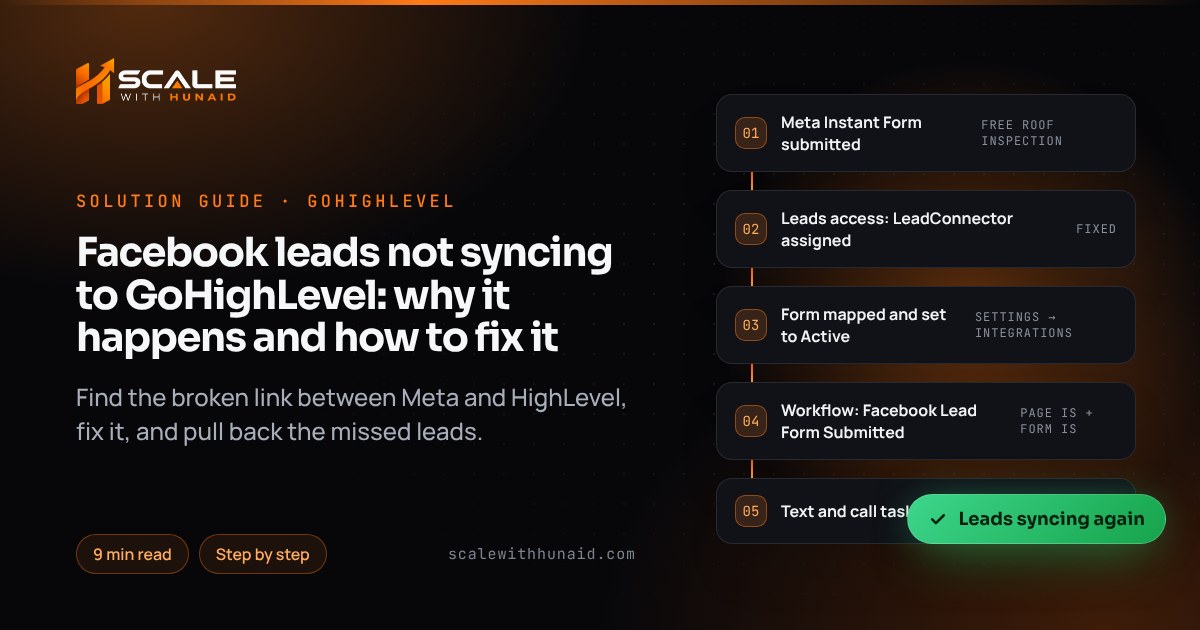
Every lead passes through four links, and all four have to hold:
- Meta records the lead when someone submits your Instant Form on Facebook or Instagram.
- Meta notifies LeadConnector (HighLevel’s Meta app) — but only if LeadConnector has leads access to that Page.
- HighLevel creates the contact — but only if the form is mapped and set to Active in the sub-account.
- A workflow runs on the Facebook Lead Form Submitted trigger and texts, emails or assigns the lead.
If the lead appears in Meta but not in HighLevel, links 2 or 3 are broken. If the contact appears in HighLevel but nobody follows up, it is link 4.
Step 1: find the broken link with a test lead
Meta’s Lead Ads Testing Tool sends a fake lead through the real connection and tells you whether each CRM received it.
- Open
developers.facebook.com/tools/lead-ads-testingwhile logged in as a Page admin. - Select your Page and the Form your ad uses.
- If a test lead already exists, click Delete lead — Meta allows only one test lead per form.
- Click Create lead, then Track status. Click it again after a few seconds until the status changes from pending.
- Read the result:
- LeadConnector is not listed at all — LeadConnector has no access to this Page. HighLevel confirms that a missing App ID means no access. Go to cause 1.
- LeadConnector shows failed or an error — the connection or permissions are broken. Go to causes 1 and 2.
- Success, but no contact in HighLevel — the form is not mapped or not active. Go to cause 3.
- Contact created, but no text or email went out — go to cause 5.
| What you see | Likely cause | Where to fix it |
|---|---|---|
| LeadConnector missing in the testing tool | No leads access | Meta Business Settings → Integrations → Leads access |
| “Facebook connection has expired” email | Token expired or permissions changed | HighLevel Settings → Integrations → Facebook |
| Test lead succeeds, no contact | Form not mapped or not Active | Settings → Integrations → Facebook Form Field Mapping |
| New ad’s leads missing, old ones fine | New form never mapped | Facebook Form Field Mapping |
| Contact created, some fields blank | Unsupported field type or renamed field | Form field mapping |
| Contact created, no follow-up | Workflow filter or Draft status | Automations → Workflows |
| Leads from one Page only | Page deselected on reconnect | Reconnect with every Page selected |
Cause 1: LeadConnector has no leads access
This is the cause I find most often, especially after someone new joins the business portfolio or an agency changes. Once leads access is switched on, Meta only lets assigned CRMs receive leads: existing Page admins and CRMs keep access, but a CRM added later gets nothing until someone with full control assigns it.
Fix (as of October 2026):
- Log in to Meta Business Settings as someone with full control of the business portfolio.
- Go to Integrations → Leads access and select the Page that runs the ads.
- Open the CRMs tab. If LeadConnector is missing, click Assign CRMs, tick LeadConnector and click Assign, as described in Meta’s Leads Access Manager guide.
- If LeadConnector is listed but leads still fail, HighLevel suggests clicking Restore Default Access and checking again.
- On the People tab, make sure the Page admin who connected HighLevel still has leads access. Meta warns that if that person loses access, the CRM fails to fetch data.
- Run the testing tool again. LeadConnector should now show success.
Cause 2: the Facebook connection has expired
HighLevel emails you when the connection drops. Its multi-page troubleshooting article lists the usual triggers: a Facebook password change, natural token expiry, removing the app, logging out of Facebook, or changing Page permissions. HighLevel also recommends that the same user owns the Page and the ad account.
Fix:
- In HighLevel, switch to the sub-account named in the email and go to Settings → Integrations.
- On the Facebook card, click Connected to disconnect, then click Connect.
- Log in as a Page admin who also has access to the ad account, and approve every permission LeadConnector asks for.
- On the Page selection screen, keep every previously authorised Page ticked. HighLevel warns that deselecting a Page during reconnection can remove its access.
- If Pages are still missing, open Facebook Settings & privacy → Settings → Business integrations, check LeadConnector is listed with your Pages, and if not, remove it and connect again from HighLevel.
- Back on the Facebook card, click Troubleshoot. A warning icon means permissions are still missing; there should be none.
Cause 3: the form is not mapped or not Active
Lead access only gets the lead to HighLevel’s door. HighLevel only collects leads from forms that are mapped and marked Active. This is why a new campaign often breaks when the old one kept working: the new ad uses a new or duplicated form that nobody mapped.
Fix:
- Go to Settings → Integrations → Facebook Form Field Mapping. HighLevel’s setup guide covers Facebook and Instagram forms in the same place.
- Find the form your live ad uses — check the form name in Ads Manager, as duplicates often share a name.
- Map each form question to a HighLevel field: name, email and phone to the standard fields, other questions to custom fields.
- Avoid radio and timezone fields — HighLevel says neither can be mapped to Facebook lead forms. Use a single-line text or dropdown field instead.
- Set the form to Active and save.
- Don’t rename questions in the Facebook form afterwards; HighLevel notes that changing field names can break the mapping.
Cause 4: leads come in from one Page but not another
Agencies and multi-location businesses often connect several Pages to one sub-account. If one Page’s leads stop, it is usually because that Page was deselected during a reconnect or its form was never mapped. HighLevel’s multiple Pages article shows a warning icon on the Facebook card for each problem.
Fix:
- On Settings → Integrations → Facebook, look for the two warning icons: one for unmapped forms, one for missing permissions.
- Click the mapping warning to go straight to the unmapped form and map it as in cause 3.
- Click the permissions warning to open Troubleshoot and grant the missing access, then repeat cause 1 for that Page in Meta.
- Send a test lead from each Page with the testing tool.
Cause 5: the contact arrives but the workflow doesn’t run
If the contact is in HighLevel, the integration works and the problem is automation. The Facebook Lead Form Submitted trigger has two filters: Page Is and Form Is. One trigger covers one form, so a new form needs its own trigger.
Fix:
- Open Automations → Workflows and the workflow that should handle the lead.
- Open the trigger and check Page Is and Form Is point to the Page and form the live ad uses.
- For a second form, click Add New Trigger, choose Facebook Lead Form Submitted again and set its filters, rather than building a separate workflow.
- Check the workflow is Published, not Draft, and turn on Allow Re-entry if the same person may submit twice.
- If it still doesn’t fire, work through my workflow not triggering checklist.
If the first step texts the lead, the number must be registered for A2P — see my A2P 10DLC campaign rejected guide. Texting rules also vary by state, for example under Florida’s telemarketing rules. This is not legal advice.
Step 2: recover the leads you missed
Once the test lead arrives, bring back the real ones. HighLevel’s Sync Leads option processes leads that were never delivered for every mapped form on every linked Page.
- Go to Settings → Integrations, click Troubleshoot on the Facebook card.
- Choose Sync Leads and a time range — for example the past 7 or 30 days — covering the whole outage.
- Check the new contacts in Contacts, filtered by source.
- For leads older than HighLevel’s range, download them from Meta and import them as a CSV. Meta keeps lead data for 90 days from submission, so do this straight away.
Why a broken sync costs more than it looks
Every hour a lead sits in Meta is an hour nobody calls them. In Harvard Business Review’s analysis of 1.25 million sales leads, firms that tried to contact a lead within an hour were nearly seven times as likely to qualify it as those that tried even an hour later, and more than 60 times as likely as firms that waited 24 hours or longer. A sync that silently fails over a weekend puts every lead into that last group.
HBR reports “nearly seven times” and “more than 60 times”; bars show those multiples.
Source: Harvard Business Review, The Short Life of Online Sales Leads (2011)
Confirm it is fixed
Mistakes to avoid
- Launching a new form without mapping it. The most common reason a campaign “suddenly” stops sending leads.
- Connecting with a staff member’s login. When they leave, the sync breaks with them.
- Deselecting Pages on reconnect. It quietly removes access to Pages that were working.
- Running Sync Leads with the workflow on. Week-old leads get an instant “thanks for enquiring” text.
- Leaving leads in Meta for weeks. After 90 days they cannot be downloaded at all.
Get every paid lead into your CRM
A Facebook lead is only worth what you spent on it if someone follows up in minutes. I connect lead ads, map every form, test them and build the follow-up workflow as part of a GoHighLevel CRM setup, build the landing pages and funnels that sit alongside your ads, and can add a Voice AI agent that calls new leads the moment they arrive. If leads already reach HighLevel but calls slip through, my missed call text back guide closes that gap too.

References
- Facebook Lead Ad Integration & Troubleshooting Guide — HighLevel Support Portal
- Set Up Facebook and Instagram Lead Ads in HighLevel — HighLevel Support Portal
- Multiple Facebook Pages — Troubleshooting CTA and Sync Lead Features — HighLevel Support Portal
- Facebook Multi Page Troubleshoot — HighLevel Support Portal
- Connect Facebook Business Account to HighLevel Ad Manager — HighLevel Support Portal
- Workflow Trigger — Facebook Lead Form Submitted — HighLevel Support Portal
- Enable Leads Access in Meta Business Suite — Meta Business Help Centre
- Assign or remove permissions in Leads Access Manager — Meta Business Help Centre
- Lead Ads — Testing and Troubleshooting — Meta for Developers
- Download or Retrieve Your Leads Data from Meta — Meta Business Help Centre
- Edit or remove business integrations from Facebook — Facebook Help Centre
- The Short Life of Online Sales Leads — Harvard Business Review