
Solution guide · GoHighLevel
GoHighLevel workflow not triggering: how to find the cause and fix it
GoHighLevel workflow not triggering? Read the logs, find the cause — draft mode, filters, re-entry, DND or race conditions — and apply the exact fix.

Key takeaways
- Most GoHighLevel workflows that “don’t trigger” are either still in Draft, have a trigger filter that does not match the event, or block the contact because Allow Re-entry is off.
- The Enrollment History tab tells you which half is broken: if the contact is not listed, the trigger never fired; if they are listed, the failure is inside the actions.
- HighLevel skips SMS and email steps for contacts with Do Not Disturb switched on, so a workflow can run perfectly and still send nothing.
- Two updates in the same second can race each other; HighLevel’s documented fix is a 1-minute Wait step before the conflicting action.
- Turn on workflow error notifications so you hear about the next failure the day it happens, not weeks later from a lost lead.
When a GoHighLevel workflow is not triggering, the workflow itself is rarely broken. In almost every account I audit, the cause is one of six things: the workflow is still in Draft, the trigger filter doesn’t match the event, Allow Re-entry is blocking a returning contact, Do Not Disturb is silently skipping the messages, two actions are racing each other, or a wait step is stuck. Each has a specific fix, and HighLevel’s own logs tell you which one you have.
In this guide I show you how to read those logs in two minutes, then walk through each cause with the exact setting to change. It is the same checklist I use when I fix workflows as part of a GoHighLevel CRM setup.
First, find out which half is broken
A workflow has two halves: the trigger (did the contact get in?) and the actions (did each step run?). HighLevel’s Execution Logs and Enrollment History answer both.
- Go to Automations → Workflows and open the workflow.
- Open Execution Logs, then the Enrollment History tab.
- Filter by your test contact and the date of the event. HighLevel allows a custom range of up to 30 days.
- Read the result:
- The contact is not listed — the trigger never fired. Go to causes 1–3 below.
- The contact is listed — the trigger worked. Switch to the Execution Logs tab and look for a failed or skipped action. Go to causes 4–6.
- On the canvas, use Highlight Contact Path to see the exact route the contact took, including error and skipped nodes.
If the problem started from a message in Conversations, there is a shortcut: open the message details and click the workflow link to jump straight to that execution.
The six causes at a glance
| Symptom | Likely cause | Where to fix it |
|---|---|---|
| Nobody enters, ever | Workflow is in Draft | Publish toggle, top of the builder |
| Some events enter, others don’t | Trigger filter doesn’t match | Trigger → filters |
| Worked the first time, not the second | Allow Re-entry is off | Settings → Allow Re-entry |
| Contact enters, SMS or email never sends | DND on the contact | Contact record → DND |
| Log says success, but the change is missing | Race condition | Add a 1-minute Wait |
| Contact sits on a step for days | Wait step or reply not matched | Wait settings, Stop on Response |
Cause 1: the workflow is still in Draft
HighLevel’s builder walkthrough is explicit: in Draft mode the workflow will not trigger or take actions; only Publish mode runs for real. Saving and publishing are separate states, and Auto Save writes your edits to the draft only — nothing changes in the live workflow until you click Publish. I see this constantly after someone edits a live workflow and assumes the save went live.
Fix:
- Open the workflow and look at the toggle at the top right of the builder.
- Clear anything in the Errors panel first. HighLevel validates the workflow when you save and highlights misconfigured If/Else and Wait steps; complete every required field in triggers and actions.
- Click Save, switch the toggle to Publish, and save again.
- Trigger it with a fresh test contact and confirm they appear in Enrollment History.
Cause 2: the trigger filter doesn’t match the event
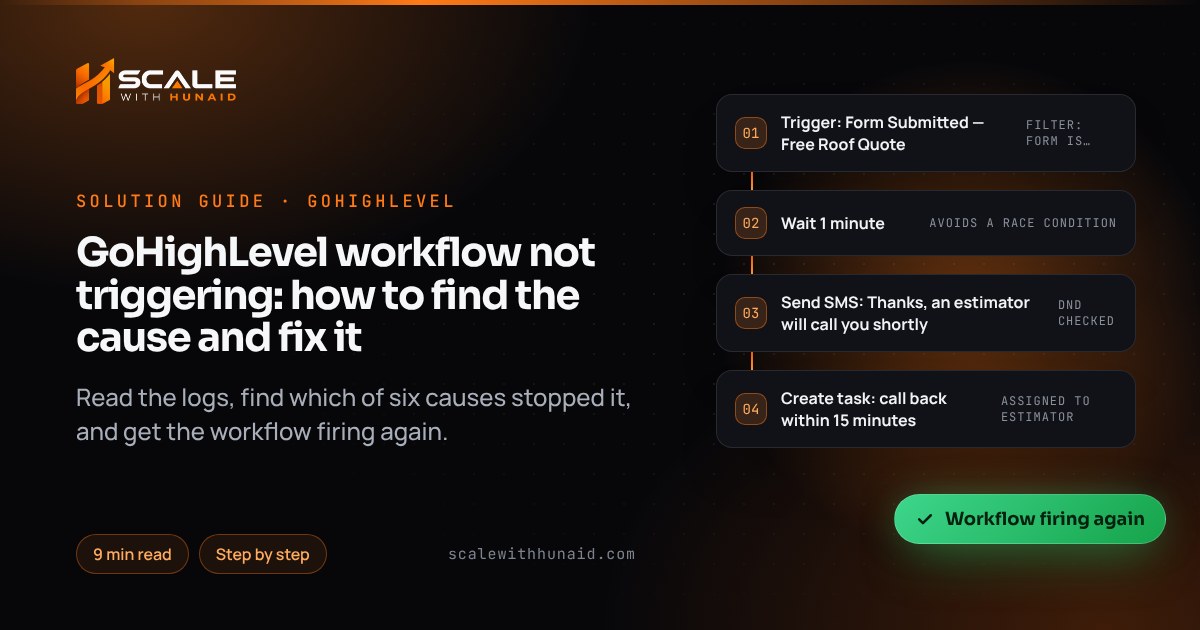
A trigger with a filter only fires when every detail matches. The classic example is the Form Submitted trigger: HighLevel’s setup is Add filter → Form is → select the form. Duplicate the form, rebuild it, or swap the funnel step to a new version, and the filter still points at the old one. Tag, pipeline and calendar filters break in the same way when someone renames or recreates the thing they point at.
Fix:
- Click the trigger and read every filter out loud: which form, which calendar, which pipeline stage, which tag.
- Compare each one with what the contact actually did. Open the contact’s record and check the activity timeline for the exact form name, calendar or stage.
- Re-select the correct item in the filter (don’t just trust the name — duplicated forms often share it).
- If the workflow should fire for several forms, add each one, as HighLevel describes, rather than leaving the filter empty.
- Save, publish and test again.
Cause 3: Allow Re-entry is off
According to HighLevel’s Workflow Settings article, with Allow Re-entry disabled a contact can enter and complete the workflow only once. With it enabled, they can enter again after completing it or being removed — but never while they are still active in it. Workflows with appointment- or invoice-based triggers always allow repeat entry per appointment or invoice, whatever the setting.
That is why a workflow “works for new leads but not for returning customers”: those contacts have already been through once.
Fix:
- In the workflow, open the Settings tab.
- Switch Allow Re-entry on for anything that should repeat — follow-ups, review requests, reactivation.
- Leave it off for one-time sequences such as onboarding, so nobody gets the welcome series twice.
- If the contact is still active in the workflow, remove them first (or wait for them to finish), then trigger again.
Cause 4: Do Not Disturb is skipping the messages
This is the one that fools people most, because the log looks fine. HighLevel’s DND article explains that the system automatically skips any communication step that conflicts with the contact’s DND settings, and still runs the other actions. So a contact with SMS DND gets the task created and the tag added, but never the text. A contact turns on SMS DND by replying STOP or a similar keyword, and a Send SMS to them fails with error 21610, which HighLevel lists as the recipient having unsubscribed.
Fix:
- Open the contact and check the DND section for each channel (SMS, email, calls and so on).
- If DND was set by mistake (for example during an import), switch that channel off in the contact record.
- If the contact opted out themselves, leave it on. HighLevel only lifts a permanent SMS opt-out when the contact texts an opt-in keyword such as START, or when you provide proof of opt-in to support.
- If messages fail for contacts without DND, the problem is the account or number — usually A2P 10DLC registration. My A2P 10DLC rejection guide covers that, and email steps that send but bounce are covered in the Gmail 550 5.7.26 guide.
Cause 5: a race condition overwrote your change
HighLevel defines a race condition as two or more updates happening in the same second, so they execute in the wrong order — or report success when the change didn’t stick. Its worked example is an Add Tag action that shows as successful in the log, while the contact has no tag, because “Add to workflow” and “Add Tag” fired in the same second. The same thing happens when a form submission and a workflow both update the same field.
Fix:
- Open the execution log for the affected contact and compare the timestamps of the actions around the missing change.
- If two updates share the same second, add a Wait action set to 1 minute directly before the second one — HighLevel’s documented fix.
- If the next workflow is triggered by that tag, put the wait in the first workflow, before the tag is added.
- Republish and test with a fresh contact.
Cause 6: the contact is stuck on a wait step
Two patterns cause this. First, HighLevel warns that if a team member sends a manual SMS while a contact is in a Wait for Customer Reply step, the reply may not be linked to the automated message, because SMS has no threading — so the contact stays on the wait even though they replied. Second, editing a Wait action doesn’t change waits already in progress; contacts already waiting keep the old timing.
Fix:
- For reply-based sequences, switch on Stop on Response in workflow settings instead of building reply waits. HighLevel’s article says it removes a contact from the workflow when they reply to an SMS, email or call that workflow sent.
- Tell the team not to text contacts manually while they sit in a reply wait — or end the sequence when a rep replies.
- If you use a Call action with Disable Voicemail Detect switched off, set the call timeout to 20 seconds or less, so a voicemail isn’t counted as a reply and doesn’t stop the workflow.
- For contacts stuck on an old wait, remove them and re-add them so they pick up the new timing.
Why a silent workflow is expensive
A workflow that stops firing doesn’t throw an error on your screen — leads simply stop getting a reply. That matters because response time drives results. Harvard Business Review’s audit of 2,241 US companies found that firms trying to contact a lead within an hour were nearly seven times as likely to qualify it as those that waited even an hour longer. The same audit shows how many businesses already respond slowly without a broken workflow making it worse:
Almost half the companies took more than a day or never replied — a broken trigger quietly puts you in those bars.
Source: Harvard Business Review, The Short Life of Online Sales Leads (2011)
Fix — so you hear about the next failure the same day:
- In Workflow Settings, switch on error notifications. HighLevel says they are off by default; add yourself and whoever owns the account as recipients. Emails go out when an error occurs, at most once every 24 hours.
- Check the Needs Review tab on the workflows list each week and mark errors as read once handled.
- Keep a simple test contact and trigger your key workflows (new lead, missed call, booking) once a month.
Mistakes that make workflows stop firing
- Editing a live workflow and forgetting to publish. Auto Save only touches the draft.
- One giant workflow for everything. Split by job — new lead, booking, no-show, review — so a single broken filter doesn’t take everything down.
- Duplicating forms, calendars or pipelines without updating every trigger that points at them.
- Running two automations for the same event, such as a missed-call workflow and another automation reacting to the same call, which double-texts or conflicts.
- Clearing DND to push a message through. Fix consent, not the flag.
Getting your automations firing again
Start with Enrollment History: it tells you in one look whether the trigger or the actions failed. Then work down the six causes — Draft, filters, re-entry, DND, race conditions, wait steps — and test every fix with a fresh contact. Turn on error notifications so the next problem reaches you the same day.
If you would rather hand it over, I audit and rebuild workflows as part of a GoHighLevel CRM setup, fix the SMS and email side through email and SMS deliverability, and build AI follow-up that answers leads instantly with AI automation and voice agents.
As of October 2026. HighLevel’s workflow builder, settings and help articles change — check the linked official pages before relying on a specific setting.

References
- Workflow Builder Walkthrough — HighLevel Support Portal
- Overview of Auto Save Feature for Workflows — HighLevel Support Portal
- Improved Workflow Execution Logs & Enrollment History — HighLevel Support Portal
- Workflow Settings — Overview — HighLevel Support Portal
- Form Submitted Workflow Trigger — HighLevel Support Portal
- How to Setup and Use Do Not Disturb (DND) — HighLevel Support Portal
- Understanding Common SMS Delivery Errors — HighLevel Support Portal
- Troubleshooting Workflow Executions — Race Conditions — HighLevel Support Portal
- Understanding Workflow Behaviour with SMS and Customer Replies — HighLevel Support Portal
- Workflow Setting Stop On Response & Call Action Disable Voicemail Detect — HighLevel Support Portal
- Highlighting & Resolving Errors in a Workflow — HighLevel Support Portal
- Error Notifications in Workflows — HighLevel Support Portal
- The Short Life of Online Sales Leads — Harvard Business Review