
Solution guide · Email deliverability
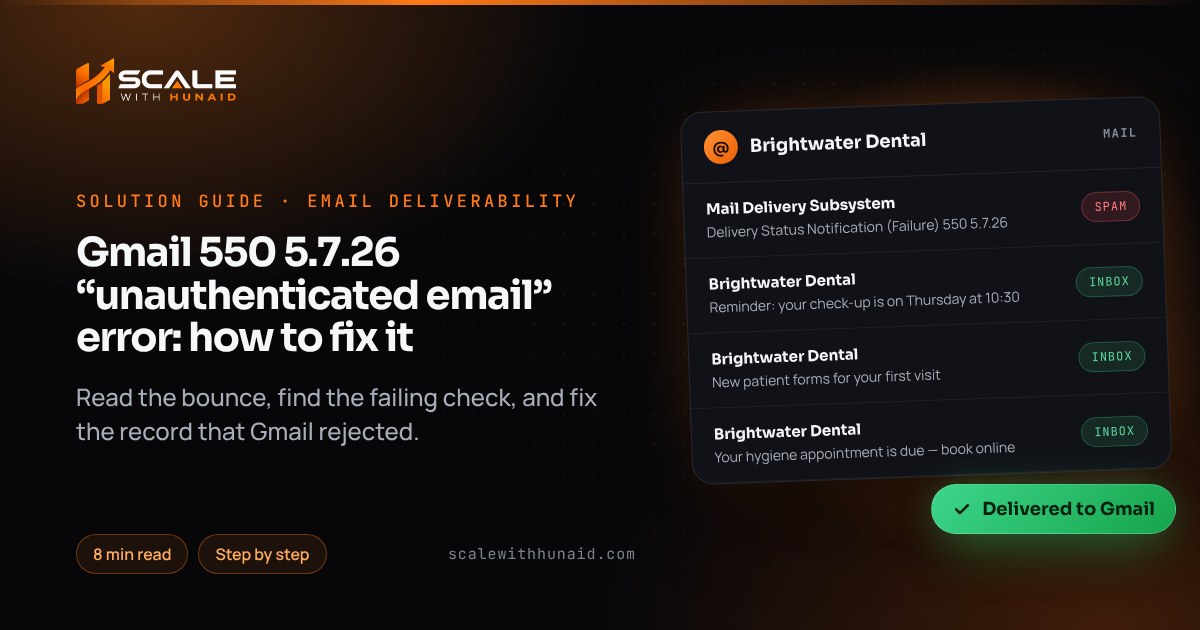
Gmail 550 5.7.26 “unauthenticated email” error: how to fix it
What the Gmail 550 5.7.26 bounce means, how to read which check failed, and the exact SPF, DKIM and DMARC fixes for GoHighLevel and Google Workspace.

Key takeaways
- Gmail’s 550 5.7.26 bounce is a permanent rejection: your message failed email authentication, and Gmail requires every sender to pass at least SPF or DKIM.
- Gmail uses the same code for three different failures — no SPF or DKIM pass, an SPF hard fail, or a failed DMARC policy — and the bounce text tells you which one you hit.
- The fix is on the sending domain, never the recipient: one SPF record that lists every sending service, DKIM signing with your own domain, and a DMARC record on the root domain.
- In GoHighLevel, most 5.7.26 bounces disappear once you send from a verified dedicated sending domain and every From address sits on that same organisational domain.
- You can confirm the fix by sending a test to a Gmail address and checking “Show original” for SPF, DKIM and DMARC all showing PASS.
The 550 5.7.26 bounce means Gmail refused your email because it could not confirm you are allowed to send as the domain in your From address. It is a permanent rejection, not a spam-folder decision: the message was never delivered, and resending it unchanged will bounce again. Google requires every sender to authenticate with SPF or DKIM, and when the domain publishes a strict DMARC policy, the message has to pass that too.
The good news is that the bounce tells you exactly which check failed. In this guide I show you how to read it, what causes each version, and the step-by-step fix I use when I repair email and SMS deliverability for clients — in GoHighLevel, Google Workspace and website forms — plus what a passing message looks like.
What the Gmail 550 5.7.26 error means
Gmail uses one code for three different failures. Google’s SMTP error reference lists each wording, and the text after the code is what matters:
| Bounce text contains | What failed | Where to fix it |
|---|---|---|
| “This mail has been blocked because the sender is unauthenticated. Gmail requires all senders to authenticate with either SPF or DKIM.” | Neither SPF nor DKIM passed for your domain | Add the sending service to SPF and turn on DKIM (Steps 2–3) |
| “The MAIL FROM domain … has an SPF record with a hard fail policy (-all) but it fails to pass SPF checks with the ip …” | The server that sent it is not in your SPF record, and SPF ends in -all |
Add that service to SPF (Step 2) |
| “Unauthenticated email from [domain] is not accepted due to domain’s DMARC policy.” | The domain’s DMARC policy is quarantine or reject, and the message failed DMARC | Align SPF or DKIM with the From domain (Steps 3–5) |
A softer cousin, 451 4.7.26, is listed by Google as a temporary failure caused when DNS lookups fail during the check. Your server retries it; you only need to act if it keeps happening. The related codes 5.7.27 (SPF fail) and 5.7.30 (DKIM fail) apply to bulk senders and have the same cure.
Why your emails fail authentication
Every case I see falls into one of these:
- A tool sends as your domain but is not authorised. Your CRM, website form or invoicing app uses
[email protected]in the From field, but its servers are not in your SPF record and it signs DKIM with its own domain — or not at all. - DKIM is not switched on. Google Workspace, for example, does not sign with your domain until you generate a key, publish it and click Start authentication.
- Two SPF records, or too many lookups. Google says each domain can have only one SPF record, and RFC 7208, section 4.6.4 caps SPF at ten DNS lookups. Break either rule and SPF fails everywhere.
- A strict DMARC policy on a shared sending domain. HighLevel’s DMARC article explains that without your own sending domain, email goes out through a shared domain. If your From domain is set to
p=quarantineorp=reject, those messages cannot pass DMARC — the third bounce in the table above. - A From address on a domain you don’t own. You cannot publish records for
gmail.comoroutlook.com, so a CRM sending “as” those addresses cannot authenticate.
How to fix 550 5.7.26, step by step
You need your DNS host login (GoDaddy, Cloudflare, Namecheap and so on) and admin access to the tools that send for you. Menu names are as of October 2026.
Step 1: Find out which check failed
- Open the bounce and copy the line after
550 5.7.26. Match it to the table above. - If you can still send a test, send one to a Gmail address you control. Open it, click the three dots next to Reply and choose Show original, as HighLevel’s authentication article describes.
- Write down three results: SPF (and the domain it checked), DKIM (and the
d=domain that signed), and DMARC. - If the SPF line names an IP address, that is the server you need to authorise.
Step 2: Publish one SPF record that lists every sender
- At your DNS host, look up the TXT records on the root domain (
@). Find every record beginningv=spf1. - If there are two, merge them into one. If there are none, create one.
- For a domain that sends only through Google Workspace, Google’s record is:
v=spf1 include:_spf.google.com ~all- Add each extra sender’s
include:to that same line, using the exact value that tool gives you. Google recommends~allover-all, because a hard fail is unforgiving of a tool you forgot. - Remove includes for tools you no longer use, to stay under the ten-lookup limit.
Step 3: Turn on DKIM signing with your own domain
Google Workspace (Google’s steps):
- Admin console → Apps → Google Workspace → Gmail → Authenticate email.
- Pick your domain and click Generate new record. Choose 2048-bit if your DNS host supports it; the default selector is
google. - Add the TXT record at your DNS host: host
google._domainkey, value startingv=DKIM1. - Return to the same page and click Start authentication. The status should change to “Authenticating email with DKIM”.
GoHighLevel — set up a dedicated sending domain:
- In the sub-account, go to Settings → Email Services → Sending Domain (labelled Dedicated Domain in some accounts) and click Add Domain.
- Use a subdomain such as
mail.brightwaterdental.com, so HighLevel’s MX records never touch the root domain that runs your normal mailbox. - Add the records HighLevel shows — typically two TXT (SPF and DKIM), two MX and one CNAME. In the host field enter only the prefix shown, not the full domain.
- Copy the DKIM value from your own screen. It is generated per account, so a value from a video or article will not work.
- Click Verify and wait until every record shows as verified.
Step 4: Publish a DMARC record on the root domain
Add one TXT record. One record on the root domain also covers its subdomains (DMARC is now RFC 9989; it was originally RFC 7489).
| Field | Value |
|---|---|
| Type | TXT |
| Host | _dmarc |
| Value | v=DMARC1; p=none; rua=mailto:[email protected] |
| TTL | Default (or 3600) |
Google recommends setting up SPF and DKIM at least 48 hours before DMARC, starting at p=none for a week while you read the daily reports, and always including the rua tag. Make sure there is only one _dmarc record.
Step 5: Make every From address match the authenticated domain
DMARC passes only when SPF or DKIM passes and its domain matches the From address. Google’s guidelines say the From domain must align with the SPF or DKIM domain. Under relaxed alignment, DKIM signed by mail.brightwaterdental.com aligns with [email protected].
In GoHighLevel, check:
- The sub-account’s default From address.
- Every workflow Send Email action and email campaign that overrides the sender.
- User profiles used for one-to-one emails in Conversations.
- The Default Header, if you saved one. HighLevel says a saved Default Header takes priority over the From name and email set on campaigns and workflows, so a wrong address there overrides everything else.
Step 6: Fix website forms and other apps
Contact forms on WordPress and other sites often send from the web server while using your address in the From field. Google’s advice for third-party apps is to send through the outgoing server that matches the From address. In practice: install an SMTP plugin, connect it to Google Workspace or your email provider, and send form notifications from an address on your own domain.
How long the fix takes
The DNS work itself takes under an hour. The waiting is in propagation and in Google’s recommended order of steps. These are the maximum waits Google documents:
Most records verify within an hour, but plan for two days before adding DMARC and a week of reports before tightening it.
Source: Google Workspace Admin Help: Set up SPF, Set up DKIM, Recommended DMARC rollout (as of October 2026)
The cost is nothing beyond your existing domain and tools. If you are on GoHighLevel’s shared domain today, warm the new dedicated domain up gradually rather than sending your whole list on day one.
Mistakes that keep the 5.7.26 bounce coming back
- Adding a second SPF record instead of editing the first — both then fail.
- Fixing the root domain but sending from a different one. Check every From field, including the Default Header.
- Generating a DKIM key and never clicking Start authentication in Google Workspace.
- Switching to
p=rejectthe same day you set up DMARC. Google’s rollout moves through quarantine with a smallpctfirst. - Asking the recipient to whitelist you. It does not change your authentication results.
Getting your emails into Gmail again
A 550 5.7.26 bounce looks technical, but it is one of the most fixable email problems: read which check failed, publish one SPF record, turn on DKIM with your own domain, add DMARC, and line up every From address. The same setup also clears Microsoft’s equivalent — see my Outlook 550 5.7.515 guide.
If you would rather not touch DNS, I set this up as part of email and SMS deliverability, and I build it into every GoHighLevel CRM setup from day one. If your texts are being filtered too, the A2P 10DLC rejection guide covers the SMS side.
As of October 2026. Gmail’s bounce wording, GoHighLevel menu names and Google’s guidance change — check the linked official pages before relying on a specific value.

References
- Gmail SMTP errors and codes — Google Workspace Admin Help
- Control unauthenticated mail from your domain — Gmail Help
- Email sender guidelines — Google
- Email sender guidelines FAQ — Google
- Set up SPF — Google Workspace Admin Help
- Set up DKIM — Google Workspace Admin Help
- Recommended DMARC rollout — Google Workspace Admin Help
- Troubleshoot DMARC issues — Google Workspace Admin Help
- Email Authentication — DMARC — HighLevel Support Portal
- Email Authentication Errors — Fix SPF, DKIM, and DMARC Issues — HighLevel Support Portal
- Manually Adding DNS Records for Dedicated Sending Domains — HighLevel Support Portal
- Default Headers for Dedicated Sending Domains — HighLevel Support Portal
- RFC 7208: Sender Policy Framework (SPF) — IETF
- RFC 9989: Domain-based Message Authentication, Reporting, and Conformance (DMARC) — IETF