
Solution guide · Email deliverability
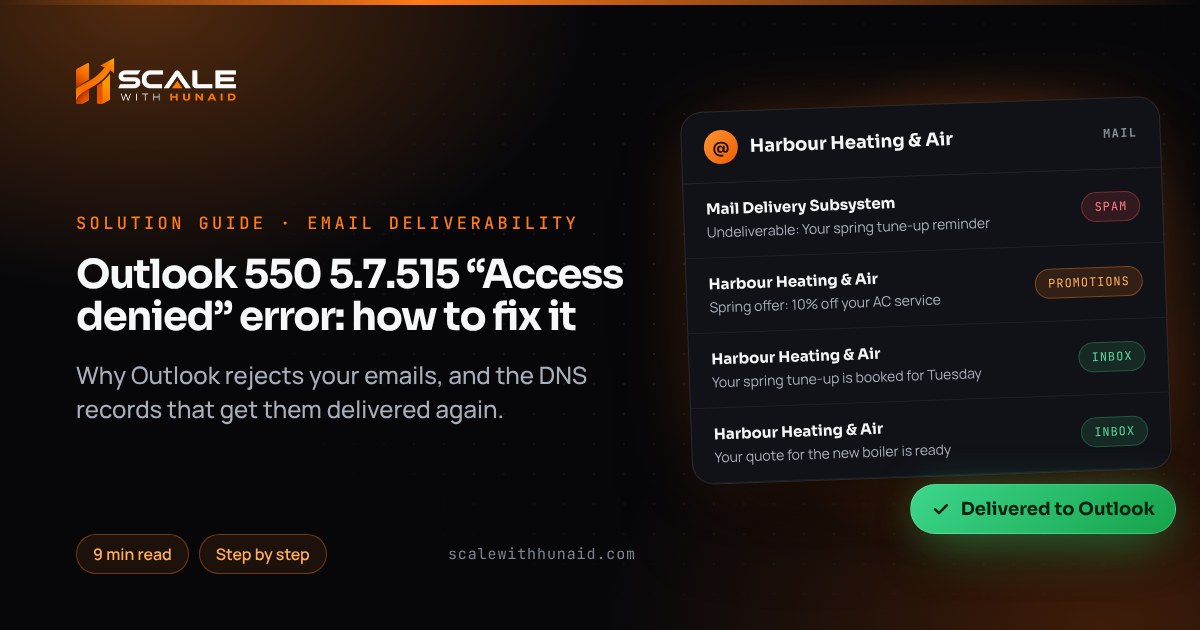
Outlook 550 5.7.515 “Access denied” error: how to fix it
What the Outlook 550 5.7.515 Access denied bounce means, why GoHighLevel senders hit it, and the exact SPF, DKIM and DMARC fixes that stop it.

Key takeaways
- The 550 5.7.515 bounce means Outlook.com, Hotmail and Live rejected your email because the domain in the From address did not pass SPF, DKIM and DMARC at the level Microsoft requires of high-volume senders.
- Microsoft applies the rule to domains sending 5,000 or more emails a day to its consumer mailboxes, and it has been enforced since 5 May 2025.
- The fix is DNS work on your own domain: one SPF record, DKIM signing with your domain, a DMARC record of at least p=none, and SPF or DKIM aligned with the From domain.
- In GoHighLevel the reliable fix is a dedicated sending domain on a subdomain, a DMARC record on the root domain, and every From address switched to that authenticated domain.
- You can confirm the fix in minutes: send a test to Outlook.com and Gmail and check that SPF, DKIM and DMARC all show pass in the message headers.
The 550 5.7.515 Access denied bounce means Microsoft refused your email at the door. Outlook.com, Hotmail and Live checked the domain in your From address, found it did not pass SPF, DKIM and DMARC at the level Microsoft requires of high-volume senders, and rejected the message outright — it never reached the junk folder. The fix is not on the recipient’s side; it is a handful of DNS records on your domain and one setting in your sending platform.
This guide explains exactly what Microsoft checks, why GoHighLevel users run into it so often, and the step-by-step fix I use when I repair email and SMS deliverability for clients — including what “fixed” looks like in the message headers.
What the 550 5.7.515 error actually means
Microsoft’s support article on the error is specific: it applies to high-volume senders, defined as 5,000 or more messages to Microsoft consumer email services using the same domain in the From address. Once a domain is in that group, every message from it must:
- Publish SPF and DKIM records for the domain.
- Publish a DMARC record —
p=none,p=quarantineorp=rejectare all valid. - Pass DMARC, which means SPF or DKIM (at least one) must pass and align with the domain in the From address.
Microsoft’s postmaster policy page says these requirements took effect on 5 May 2025 for domains sending more than 5,000 emails a day to Outlook.com accounts. Non-compliant mail goes to Junk first, and persistent problems are rejected with 550; 5.7.515 Access denied. Microsoft recommends p=reject in the long run, but p=none is enough to comply.
Microsoft, Gmail and Yahoo now ask for the same thing
Microsoft was the last of the big three to enforce this. If you fix it properly once, you satisfy all three:
| Requirement | Microsoft (Outlook.com) | Google (Gmail) | Yahoo |
|---|---|---|---|
| Who it applies to | 5,000+ emails/day to Outlook.com | More than 5,000 messages/day to Gmail | Bulk senders |
| SPF and DKIM | Both required | Both required | Both required |
| DMARC | At least p=none, must pass |
At least p=none |
At least p=none, must pass |
| Alignment | SPF or DKIM aligned with From | SPF or DKIM aligned with From | SPF or DKIM aligned (relaxed OK) |
| Unsubscribe | Easy, working unsubscribe | One-click plus visible link | One-click plus visible link |
| What failure looks like | Junk, then 550 5.7.515 |
Temporary and permanent rejections | Filtering or rejection |
Sources: Microsoft, Google’s sender guidelines and FAQ, and Yahoo’s sender best practices, as of October 2026. Google’s FAQ says it has been ramping up enforcement on non-compliant traffic since November 2025.
Why GoHighLevel senders hit 550 5.7.515
Almost every case I see in GoHighLevel comes down to one of these causes. The table shows how to spot each one; the full fix follows below.
| Cause | How to spot it | What fixes it |
|---|---|---|
| No DMARC record | dmarc=none or “no record” in headers |
Publish _dmarc TXT record (Step 4) |
| Sending on the shared domain with your own From address | DKIM signed by a platform domain, DMARC fails | Dedicated sending domain (Step 2) |
| From address on a different domain from the one authenticated | SPF and DKIM pass, DMARC fails | Change every From address (Step 6) |
| Two SPF records, or more than 10 DNS lookups | spf=permerror |
Merge into one record (Step 3) |
| DKIM record mistyped or never verified | dkim=fail or dkim=none |
Re-copy the record exactly (Step 2) |
From address is @gmail.com or @hotmail.com |
You do not own the domain | Send from your own domain |
HighLevel’s own troubleshooting article names the same culprits: duplicate SPF or DMARC records, the SPF 10-lookup limit, and SPF or DKIM passing while DMARC still fails because the domains do not match. Its DMARC article adds a common trap: if your From domain has a p=quarantine or p=reject policy but you are still sending on HighLevel’s shared domain, the platform flags it, because those messages cannot pass DMARC.
How to fix 550 5.7.515 in GoHighLevel, step by step
You need access to your GoHighLevel sub-account and to the DNS settings wherever your domain is managed (GoDaddy, Cloudflare, Namecheap and so on). Menu names below are as of October 2026.
Step 1: Read the headers of a test message
Before changing anything, find out which check is failing. Send a test from GoHighLevel to a Gmail address, open it, click the three dots next to Reply and choose Show original, as HighLevel describes. Note three things: the SPF result and domain, the DKIM result and its d= domain, and the DMARC result. In Outlook.com, Microsoft’s checklist starts the same way, with the message header view.
Step 2: Set up a dedicated sending domain on a subdomain
This is the change that fixes most GoHighLevel cases, because it makes DKIM sign with your domain instead of a shared one.
- In the sub-account, go to Settings → Email Services → Dedicated Domain (labelled Sending Domain in some accounts) and click Add Domain.
- Enter a subdomain, such as
mail.harbourheating.com. HighLevel warns that adding its MX records to a root domain that already runs Google Workspace will break your normal email — a subdomain avoids that. - Let HighLevel auto-configure the records if it offers to. Otherwise add them by hand: typically two TXT records (SPF and DKIM), two MX records and one CNAME for link tracking.
- In the host field, enter only the prefix HighLevel shows (for example
mail), not the full domain — most DNS hosts add the rest automatically. - Copy the DKIM record from your own DNS records screen. It is unique to your account, so a value from an article or video will not work.
- Remove any older MX or SPF records on that same subdomain first; HighLevel requires existing ones to be removed before the domain connects.
Step 3: Make sure there is exactly one SPF record
A hostname can only have one SPF record. Two records — or one that triggers more than ten DNS lookups — produce a permanent error, and RFC 7208, section 4.6.4 says implementations must stop at ten. If your root domain already has an SPF record for Google Workspace or Microsoft 365, leave it alone and keep HighLevel’s record on the sending subdomain. If two tools both need SPF on the same hostname, merge them into one line, for example:
v=spf1 include:_spf.google.com include:mailgun.org ~allUse the exact include values each of your tools gives you; the example only shows the shape.
Step 4: Publish a DMARC record
Add one TXT record on your root domain. A DMARC record on the organisational domain also covers its subdomains, so this one record covers mail.harbourheating.com too (DMARC is now RFC 9989; it was originally RFC 7489).
| Field | Value |
|---|---|
| Type | TXT |
| Host | _dmarc |
| Value | v=DMARC1; p=none; rua=mailto:[email protected] |
| TTL | Default (or 3600) |
p=none monitors without blocking anything and is accepted by Microsoft, Google and Yahoo. The rua address receives daily reports showing every service sending as your domain. Check there is only one _dmarc record — HighLevel lists duplicates as a common cause of failure.
Step 5: Verify the domain in GoHighLevel
Go back to the sending domain screen and click Verify. Wait until every record shows as verified. HighLevel says propagation can take up to 24 hours, though it is usually much quicker.
Step 6: Change every From address to the authenticated domain
This is the step people skip. Authentication only helps if the From address matches it. Update the From address in:
- The sub-account’s default email settings.
- Every workflow “Send Email” action that overrides the sender.
- Every email campaign and template that sets its own From.
- User profiles, if staff send one-to-one emails from the conversations tab.
Use an address on your root domain, such as [email protected]. Under DMARC’s default relaxed alignment, DKIM signed by mail.harbourheating.com aligns with a From address on harbourheating.com, because they share the same organisational domain.
Step 7: Make unsubscribing easy and watch your spam rate
Authentication gets you through the door; complaints decide whether you stay. Microsoft asks for an easy, working unsubscribe. Google and Yahoo go further and require one-click unsubscribe for marketing mail — the List-Unsubscribe-Post: List-Unsubscribe=One-Click header defined in RFC 8058 — and Google asks you to honour unsubscribes within 48 hours. Keep the unsubscribe link in every marketing template, and stop mailing contacts who have not opened in months.
Three complaints per 1,000 delivered emails is the hard ceiling at both providers; Google recommends staying under one per 1,000.
Source: Google, Email sender guidelines; Yahoo, Sender Best Practices (as of October 2026)
You can track the Gmail side in Google Postmaster Tools, which shows your spam rate and authentication results for your domain.
How long it takes and what it costs
The DNS work takes under an hour, and the records cost nothing beyond your existing domain. What takes longer is reputation. HighLevel advises warming a new dedicated sending domain gradually over two to four weeks: start with your most engaged contacts and raise volume steadily rather than sending your whole list on day one.
Mistakes that keep the bounce coming back
- Fixing the root domain but sending from another one. The From address must sit on the domain you authenticated.
- Adding a second SPF record instead of editing the first. Two SPF records mean SPF fails everywhere.
- Leaving an old ESP’s records in place. Old includes eat into the ten-lookup limit; remove tools you no longer use.
- Setting
p=rejecton day one. It can block your own invoices and contact-form notifications. - Resending immediately to the whole list. Messages that already bounced need to be resent, but in batches, starting with engaged contacts.
Getting your emails into Outlook inboxes again
The 550 5.7.515 error looks alarming, but it is one of the most fixable deliverability problems: Microsoft tells you exactly which domain failed, and the cure is a dedicated sending domain, one SPF record, a DMARC record and consistent From addresses. Once those are in place, the same setup keeps you compliant with Gmail and Yahoo too.
If you would rather not touch DNS, I set this up as part of email and SMS deliverability, and I build it into every GoHighLevel CRM setup from day one. And if your texts are being blocked as well as your emails, the A2P 10DLC rejection guide covers the SMS side of the same problem.
As of October 2026. Menu names in GoHighLevel and provider thresholds change — check the linked official pages before relying on a specific value.

References
- Fix NDR error “550 5.7.515” in Outlook.com — Microsoft Support
- Outlook.com Postmaster — Policies, practices and guidelines — Microsoft
- NDR 550 5.7.515 (Outlook/Hotmail limit) — Microsoft Q&A
- Email sender guidelines — Google
- Email sender guidelines FAQ — Google
- Sender Best Practices — Yahoo
- Email Authentication Errors — Fix SPF, DKIM, and DMARC Issues — HighLevel Support Portal
- How to Set Up a Dedicated Sending Domain (LC Email) — HighLevel Support Portal
- Email Authentication — DMARC — HighLevel Support Portal
- RFC 7208: Sender Policy Framework (SPF) — IETF
- RFC 9989: Domain-based Message Authentication, Reporting, and Conformance (DMARC) — IETF
- RFC 8058: Signaling One-Click Functionality for List Email Headers — IETF