
Solution guide · GoHighLevel
GoHighLevel form not working: how to find the cause and fix it
GoHighLevel form not working? Find missing submissions, fix embed codes, Sticky Contact, duplicates, external form tracking, alerts and spam step by step.

Key takeaways
- Start every GoHighLevel form fix by opening Sites → Forms → your form → Submissions: if the entry is there, the form works and the problem is downstream; if it is not, the problem is on the page.
- Most “wrong contact” and “contact not created” complaints come from Sticky Contact, which uses a browser cookie, so staff testing in one browser overwrite one record.
- Duplicate contacts from forms are controlled by Settings → Business Profile → Contact Deduplication Preferences, where Allow Duplicate Contact should be off and Email or Phone set as the primary match.
- Forms on non-HighLevel websites are only captured if the External Tracking script is installed and the form has a real email field with a name attribute.
- A form can save perfectly and still look broken because the Form Submitted trigger points at a different form, so check the trigger filter before you rebuild anything.
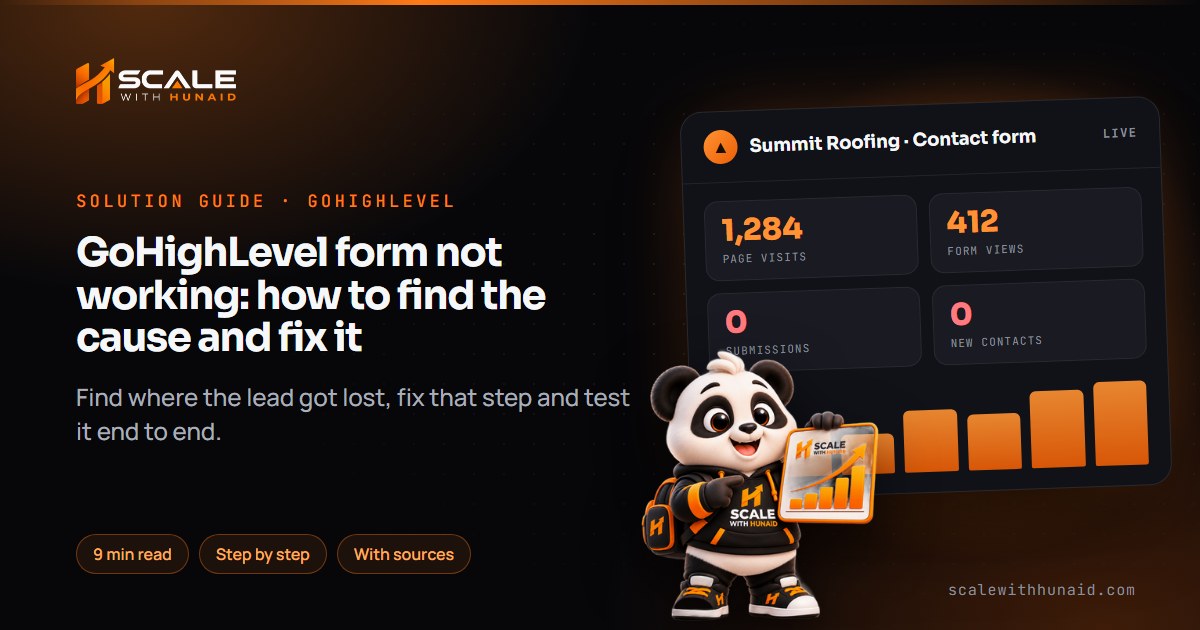
When a GoHighLevel form is not working, the form itself is rarely broken. Usually the submission arrived and something after it failed: the wrong contact got updated, a duplicate was created, the alert never went out or the workflow listened to a different form. Sometimes it never left the page because the embed code or tracking script is wrong. The fix is to find out which of those happened before you change anything.
In this guide I show you how to check whether a submission reached HighLevel, then give you the fix for each cause: embed codes, Sticky Contact, duplicate contacts, forms on other websites, notifications and workflows, and spam. It is the same order I test lead capture in when I build funnels and landing pages. Menu paths are as of November 2026.
Why a GoHighLevel form looks like it is not working
“The form isn’t working” covers several different failures. Match what you see to the table, then go to that fix.
| What you see | Most likely cause | Go to |
|---|---|---|
| Form doesn’t appear on the website | Broken or stripped embed code, cache | Fix 1 |
| Lead says they submitted, nothing in HighLevel | Form not loading, or a non-HighLevel form without tracking | Fix 1 or Fix 4 |
| Submission landed on the wrong person | Sticky Contact cookie | Fix 2 |
| Same lead appears twice | Allow Duplicate Contact switched on | Fix 3 |
| Submission is there, but no alert or workflow | Notification not set, wrong trigger filter | Fix 5 |
| Dozens of fake entries | No CAPTCHA or phone verification | Fix 6 |
It matters more than it looks. When the Harvard Business Review audited 2,241 US companies by sending them a web lead, only 37% replied within an hour and 23% never replied at all. A lead lost to a broken form is in that last group without you knowing it.
Share of 2,241 US companies by response time to a test web lead. A form that silently drops submissions puts you in the last bar.
Source: Harvard Business Review, The Short Life of Online Sales Leads (2011)
- 1Open the Submissions tabDid the entry reach HighLevel?
- 2Re-copy the embed codeFrom Integrate, into an HTML block.
- 3Test in incognitoRules out the Sticky Contact cookie.
- 4Check duplicate settingsOne contact per email or phone.
- 5Check the trigger filterForm is: the form you actually use.
Check whether the submission reached HighLevel
This one check splits the problem in half. If the entry is in HighLevel, the form works and the fault is downstream (Fixes 2, 3 and 5). If it isn’t, the fault is on the page (Fixes 1 and 4).
- Submit the form yourself from a private or incognito window, using a new email address and phone number you haven’t used before.
- In the sub-account go to Sites → Forms, open the form and click the Submissions tab at the top of the builder, as HighLevel’s contact form guide shows. Your test should be at the top.
- Open Contacts and search for the test email. HighLevel says a completed form creates a contact record automatically, so it should be there with the details you entered.
- Optional but useful: in the form’s Settings tab, switch on Create Conversation on Submission. HighLevel notes this has to be enabled on each form, and it only affects the Inbox, not automation. Submissions then show in Conversations, where you can filter by Last Message Channel Is Form Submission.
Write down what you found. “In Submissions, but no contact” and “not in Submissions at all” have completely different fixes.
Fix 1: the embedded form doesn’t show or doesn’t submit
When a HighLevel form is placed on a website, it is loaded by an embed code. A truncated paste, a page builder that strips scripts or a cached page are the usual culprits.
- Open the form and click Integrate, choose Embed Code, then Copy embed code — the steps HighLevel documents.
- Check the layout first. HighLevel offers Inline, Popup, Polite Slide-In and Sticky Sidebar. A popup or slide-in waits for its trigger, so it can look “missing” when it’s only waiting. For a normal contact section, choose Inline.
- On WordPress, Webflow, Wix or Squarespace, paste the code into a raw HTML / custom code block, not a text block, which often removes the script.
- Replace the whole old snippet. Don’t edit it by hand; one missing character in the form ID stops it loading.
- If a popup or slide-in is cut off, set a custom modal height in the embed options — HighLevel added it for those three layouts. For an inline form, change the height in the iframe code.
- Clear your website and CDN cache, then test in a private window on a phone and a desktop.
Fix 2: the wrong contact was updated, or no new contact appeared
This is the one that confuses people most. The submission is in the Submissions tab, but it was written onto an existing contact, often your own.
The cause is usually Sticky Contact. HighLevel explains that it uses browser cookies to remember the details someone entered and fill them into the next form, survey or calendar. If two or more people submit from the same browser, their information is written to the same contact, and when staff fill in a form for a lead, the latest submission overwrites that record.
- Repeat your test in an incognito window. If a new contact now appears, Sticky Contact was the cause.
- For forms that staff use (phone enquiries, front-desk intake, tablets at events), open the form, go to Options in the builder and turn Sticky Contact off.
- Tell the team to test public forms only in incognito, and never with their own browser that already holds a cookie.
- Keep Sticky Contact on public forms if you like the pre-filling, but know it doesn’t fill hidden or custom fields.
- Fix the damaged record by hand: open the overwritten contact, restore the right name, email and phone, and create the lead as a new contact.
Fix 3: forms create duplicate contacts (or merge two people)
Whether a submission creates a new contact or updates an existing one is controlled by one setting. HighLevel’s article says Allow Duplicate Contact decides how new submissions from forms, Zapier, Facebook and Instagram Messenger create or merge contacts.
- Go to Settings → Business Profile → Contact Deduplication Preferences.
- Turn Allow Duplicate Contact off, so each email or phone keeps one record and new submissions update it.
- Set the primary match field. I use Email for most service businesses and Phone where leads mostly call or text. Set the other one as secondary.
- Make the form ask for the field you match on, and make it required. If you match on email but the form only asks for a phone, every submission looks new.
- Merge the duplicates you already have with Manage Duplicates, which HighLevel describes as searching by email, phone or name and letting you choose the master record and the values to keep.
The reverse problem — two family members on one email merged into one contact — is the same setting working as designed. If you genuinely need separate records for a shared email, match on phone instead.
Fix 4: forms on another website aren’t reaching HighLevel
If your site is WordPress, Webflow or anything else, and the form was built there, not in HighLevel, nothing reaches the CRM unless you install HighLevel’s tracking script. HighLevel’s external forms article sets out the rules.
- In the sub-account, go to Settings → External Tracking and copy the script. It contains a
data-tracking-idattribute; if that is missing, nothing is tracked. - Add the script to every page that has a form, ideally site-wide in the header.
- Make sure the form is standard HTML that is present on the page, with a
nameattribute on each input. - Include an email field. HighLevel needs one to track the submission and create or match the contact, written like
<input type="email" name="email">. - Name or label the other inputs to match HighLevel fields (
first_name,phone) so they map. Fields that don’t match are kept as submission data, not on the contact. - Submit a test, then look in Sites → Forms → Submissions for an entry labelled
external form: {form_name}. If nothing shows, turn on the script’s debug mode and check the browser console.
If the form plugin can’t produce clean HTML, I connect it with a webhook or an n8n, Make or Zapier automation instead. Ad forms are a separate route; see my guide to Facebook leads not syncing to GoHighLevel.
Fix 5: the submission arrived but no alert or workflow ran
Now the form is fine and the follow-up is the problem.
No email alert. Notifications are set inside each form. HighLevel’s notification article describes two options: an email to you when someone fills in the form, and an auto-responder to the person who submitted it.
- Open the form and click the notifications icon.
- Add every address that should get the alert in the To field.
- Set a reply-to of
{{contact.email}}, which HighLevel’s changelog supports, so hitting Reply goes to the lead. - To alert the assigned user, use a workflow. A feature request on HighLevel’s ideas board reports that
{{user.email}}in the form notification doesn’t send.
No workflow. The usual cause is the trigger filter. HighLevel’s setup is Add filter → Form is → select the form. Duplicate or rebuild a form and the filter still points at the old copy.
- Open the workflow and click the Form Submitted trigger.
- Re-select the form you’re really using; duplicates often share a name, so check the one in the page.
- Save the trigger and make sure the workflow is Published, not Draft.
- Submit a new incognito test and check the workflow’s Enrollment History.
If the contact still doesn’t enter, work through my full guide to GoHighLevel workflows not triggering, which covers re-entry, DND and race conditions.
Fix 6: spam submissions are flooding the form
Bots fill unprotected forms, and each fake entry can start a workflow, use an email or SMS credit and pollute your pipeline. HighLevel recommends CAPTCHA, email and phone validation, and limiting SMS permissions by geography.
- In the form builder, add the CAPTCHA field (under the custom field types) and place it just above the submit button.
- Make email and phone required so half-empty bot entries fail.
- For high-value forms, open the Phone field and enable Validate Phone. HighLevel texts a one-time code before the form can be completed, and records the result in a Phone Verified field. The sub-account needs a phone number set up first.
- Restrict SMS sending to the countries you serve, so a spam entry with a foreign number can’t trigger an international text.
- Review the Submissions tab weekly. If the same pattern of fake names or domains keeps getting through, tighten the form before it starts costing SMS credits or Voice AI minutes.
Mistakes that keep forms losing leads
Loses leads
- Avoid: Testing in your own browser
- Avoid: Editing the embed code by hand
- Avoid: Duplicates switched on
- Avoid: No email field on site forms
- Avoid: Trigger still on the old form
Captures them
- Do: Incognito test with new details
- Do: Fresh code from Integrate
- Do: Email or phone as match field
- Do: Tracking script and email input
- Do: Filter re-selected and published
The one I see most is testing with your own details in your own browser. Sticky Contact quietly writes the test onto your contact, you see no new lead and conclude the form is broken. Every test should use a fresh email, a fresh phone and an incognito window.
Getting every lead into GoHighLevel
A GoHighLevel form that works end to end needs four things: a clean embed or tracking script on the page, Sticky Contact off wherever staff submit, duplicate matching on a field the form requires, and a notification and workflow pointed at the right form. Run the incognito test above every time you change a page, a form or a workflow.
If you’d rather hand it over, I build and test lead capture as part of funnels and landing pages, and wire the follow-up behind it in a GoHighLevel CRM setup. When the form is fine but the workflow isn’t, start with workflows not triggering.

References
- How to Create a Contact Form in HighLevel: Step-by-Step Guide — HighLevel Support Portal
- How to Access Form Submissions in Conversations — HighLevel Support Portal
- How to Use Embedding Options for Forms: Triggers, Layouts, and Deactivation Settings Explained — HighLevel Support Portal
- Custom Modal Height for Embedded Forms, Surveys, and Quizzes — HighLevel Changelog
- Sticky Contact in Forms, Surveys, and Calendars — HighLevel Support Portal
- Allow Duplicate Contacts (Contact Deduplication Preferences) — HighLevel Support Portal
- How to Manage and Merge Duplicate Contacts in HighLevel — HighLevel Support Portal
- Capture External Form Submissions Automatically (Tracking External Forms) — HighLevel Support Portal
- Workflow Trigger: Form Submitted — HighLevel Support Portal
- How To Create Automated Email Notifications for Form and Survey Submissions — HighLevel Support Portal
- Extended Support for Custom Values in Form/Survey Email Notifications and Auto Responder — HighLevel Changelog
- Email notifications for surveys and forms need to be able to send to assigned user’s email — HighLevel Ideas
- How to make my form submissions secure from spammers? — HighLevel Support Portal
- How to Setup SMS Verification in Forms and Surveys — HighLevel Support Portal
- The Short Life of Online Sales Leads — Harvard Business Review