
Solution guide · GoHighLevel
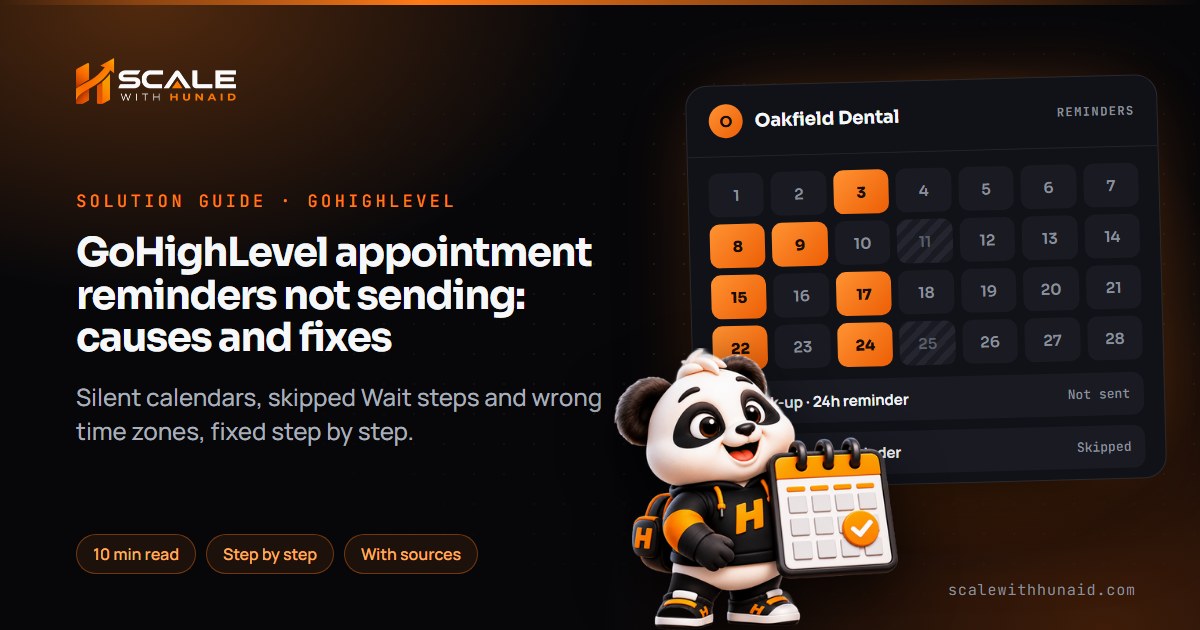
GoHighLevel appointment reminders not sending: causes and fixes
GoHighLevel appointment reminders not sending? Fix calendar notification settings, Wait steps, triggers, time zones and blocked SMS step by step.

Key takeaways
- GoHighLevel sends appointment reminders in two separate ways: the Reminder notification inside each calendar’s Notifications tab, and a workflow with an appointment trigger and a Wait step, so first find out which one is meant to send yours.
- Most workflow reminders fail because the trigger is wrong (a non-appointment trigger, the wrong calendar, or a filter that skips recurring bookings) or because the Wait step’s time had already passed when the contact reached it.
- Reminders that arrive at the wrong hour almost always come from the workflow time zone setting: it uses either the account’s time zone or the contact’s, and falls back to the account time zone when the contact has none.
- A reminder text is blocked when the contact has SMS DND switched on or the message is filtered, even though appointment emails can bypass Email DND.
- Test with a real booking on the right calendar, then read the workflow’s execution history and the message status in Conversations to confirm the fix.
When GoHighLevel appointment reminders are not sending, the cause is nearly always one of five things: the reminder was never switched on for that calendar, the reminder workflow uses the wrong trigger or calendar, the Wait step’s time had already passed, the workflow is working in the wrong time zone, or the text was blocked by DND or a carrier. Each one leaves a clear trace in the calendar settings, the workflow history or the conversation, and each has a short fix.
This guide shows you how to tell which one you have, then fixes each cause step by step with the exact settings to use, as of November 2026. It is the same checklist I use when I set up GoHighLevel calendars and automations for clinics, trades and agencies.
Two ways GoHighLevel sends reminders
HighLevel has two separate reminder systems, and a lot of confusion comes from mixing them up.
- Calendar notifications. Each calendar has its own Notifications tab. HighLevel’s notifications guide lists six notification types (booked unconfirmed, booked confirmed, cancellation, reschedule, reminder and follow-up), each with Email, In-App, SMS and WhatsApp tabs. For a reminder you set how far before the appointment it goes, and you can add several timings.
- Workflows. A workflow starts from an appointment trigger, then uses a Wait step set relative to the appointment time followed by Send SMS or Send Email.
| Calendar notifications | Reminder workflow | |
|---|---|---|
| Where | Calendar settings → calendar → Notifications | Automation → Workflows |
| Set-up time | Minutes | 15–30 minutes |
| Branching and logic | No | Yes (If/Else, tags, internal alerts) |
| Typical failure | Toggle off, no timing, wrong recipient | Wrong trigger, past Wait, time zone |
| Where to check | The calendar’s Notifications tab | Workflow execution history |
Pick one system per calendar. If both are on, the contact gets two reminders; if you think one is on but neither is, nobody gets anything.
- 1Find the sending systemCalendar notification or workflow?
- 2Switch the reminder onReminder type, toggle on, timing set.
- 3Fix the triggerAppointment Status, right calendar.
- 4Fix the Wait stepChoose what happens if time passed.
- 5Set the time zoneAccount or contact time zone.
- 6Clear DND and errorsRead the status in Conversations.
Find your cause in five minutes
Book a test appointment on the affected calendar with your own phone and email, with a start time more than 24 hours away. Then check, in this order:
| What you see | Likely cause | Go to |
|---|---|---|
| Nothing in the workflow history for the contact | Reminder is a calendar notification that is off, or the trigger does not match | Cause 1 or 2 |
| Contact entered the workflow, then left or finished early | Wait time already passed, or the appointment was cancelled or rescheduled | Cause 3 |
| Reminder sent, but at the wrong hour | Workflow time zone setting | Cause 4 |
| Reminder sent with blank date or time | Not started from an appointment trigger | Cause 2 |
| SMS step ran, message shows failed or error | DND, invalid number or carrier filtering | Cause 5 |
Cause 1: the calendar reminder is not switched on
Do not assume a new calendar sends reminders: the setting is per calendar, so a reminder you set on one calendar does nothing for the others. HighLevel’s guide also notes that SMS needs phone numbers with country codes, and WhatsApp needs a connected, verified WhatsApp Business Account with approved templates.
The fix:
- Go to Calendars → Calendar Settings, open the affected calendar and click the Notifications tab.
- Choose the Reminder notification type.
- Open the Email tab, turn the toggle on and set the timing, for example 24 hours before. Use add trigger timing for a second reminder, for example 2 hours before.
- Open the SMS tab and do the same. Keep the message short and include the date, time and a way to reschedule.
- Check the recipients: the contact must be selected, not only the assigned user.
- Repeat for every calendar that should send reminders, including round-robin and class calendars.
- If a workflow also sends reminders for this calendar, turn one of them off.
Cause 2: the reminder workflow has the wrong trigger
A reminder workflow needs an appointment trigger so it knows which appointment to count down to. HighLevel says appointment custom values such as {{appointment.start_time}} only fill in when the workflow uses an appointment trigger, and that you should test with a real booking. Adding a contact to the workflow by hand is a common trap: a request on HighLevel’s ideas board describes manually added contacts getting the current date instead of the appointment’s and leaving the workflow straight away.
The trigger to use is Appointment Status. Its filters include In Calendar, In Calendar Group, Appointment Status Is and Modified By. HighLevel’s recurring appointments article says the older Customer Booked Appointment trigger is being deprecated, with Modified By covering the same cases (Customer for widget bookings, User for bookings made inside the CRM, API for API bookings). The same article explains a quiet cause of missing reminders: existing Appointment Status triggers were given an Event Type: Normal filter, so they do not fire for recurring appointments.
The fix:
- Open the workflow and click the trigger. Use Appointment Status, not a form, tag or pipeline trigger.
- Add In Calendar and select every calendar that should get these reminders. A filter on the wrong calendar is the most common reason a workflow never starts.
- Set Appointment Status Is to New and Confirmed (or leave status unfiltered if you want every booking).
- Leave Modified By empty unless you really want to exclude bookings made by staff or through the API.
- If you use recurring appointments, set Event Type to Any.
- Click Publish. A workflow left in Draft does nothing; see my guide to GoHighLevel workflows not triggering for the other trigger checks.
- Book a real test appointment and confirm the contact appears in the workflow’s execution history.
Cause 3: the Wait step’s time had already passed
This is the cause I see most. A workflow says “wait until 1 day before the appointment, send SMS; wait until 2 hours before, send SMS”. Someone books at 4pm for 10am the next morning. When they reach the first Wait step, “1 day before” is already in the past.
HighLevel’s Wait action guide says that when an event or appointment time has already passed, the workflow follows the step’s If already in the past setting: go to the next step, go to a specific step, or skip all outbound communication actions until the next Wait or Event Start Date action. The right choice depends on what comes next; the wrong one either sends a stale “see you tomorrow” text or skips everything.
Cancellations and reschedules also stop reminders. HighLevel’s appointment scenarios article says a contact whose appointment is cancelled, marked invalid or no-show is pulled out of the workflow, and a change of start or end time counts as a reschedule that also removes them. The Appointment Status article says a rescheduled appointment is treated as new and the contact starts again from the beginning, so the two articles differ; test a reschedule on your own workflow.
The fix:
- Open each Wait step in the reminder workflow and choose Event/Appointment Time, then Before, with the amount (for example 1 day, then 2 hours).
- In If already in the past, choose Skip all outbound communication actions till next wait for every reminder except the last. A late booking then skips the stale 24-hour text and still gets the 2-hour one.
- For the final Wait step, choose Go to next step only if the next message still makes sense close to the start time.
- If you use a Set Event Start Date action, place it before the Wait steps that use it. The Set Event Start Date guide describes it as the reference point for later Wait steps.
- Add an If/Else with the Appointment → Rescheduled condition if you want rescheduled contacts to get a different first message.
- Book one test appointment for tomorrow and one for next week, then reschedule one, and check the history for each.
Cause 4: reminders go out at the wrong time
If the reminder arrives but at the wrong hour, look at the workflow’s time zone. HighLevel’s workflow settings guide says every time-based step in a workflow uses one setting: the account time zone or the contact’s time zone. If it is set to the contact’s time zone and the contact has none on their record, it uses the account time zone. Changing the setting only affects contacts who enter after the change.
There is a second, text-level problem: {{appointment.start_time}} prints the time without a time zone label. A thread on HighLevel’s ideas board describes a client who booked in one time zone and received reminders showing the business’s local time.
The fix:
- Check the account time zone in Settings → Business Profile matches where appointments take place.
- In the workflow, open Settings and choose the time zone. For local businesses where clients come to you, use the account time zone. For online calls with clients in several regions, use the contact’s time zone and make sure forms capture it.
- Save and publish. Remember that contacts already waiting in the workflow keep the old setting.
- In the SMS text, write the time zone into the message, for example
Your appointment: {{appointment.start_time}} (Eastern time). - Check the workflow history for the next booking: it shows which time zone was used for each action.
Cause 5: the reminder text was blocked
If the workflow history shows the SMS step ran but the client says nothing arrived, open the contact in Conversations and click the message to see its status and error. HighLevel’s SMS troubleshooting article covers the main reasons: DND on the contact, invalid or landline numbers, sender problems and opt-outs. A contact who replied STOP gets permanent SMS DND, and messages to them fail with Twilio error 21610. Note that HighLevel says calendar notification emails can bypass Email DND, but this does not cover SMS.
The fix:
- Read the error code on the failed message before changing anything.
- If the contact has SMS DND on because they replied STOP, do not switch it off yourself. Ask them to text START or use email reminders instead.
- If the number is invalid or a landline, correct it and make sure your booking form requires a mobile number with the country code.
- If messages show as filtered or undelivered, check your A2P 10DLC campaign covers appointment reminders. My guides to SMS error 30007 and A2P 10DLC campaign rejections cover those fixes, or I can handle A2P registration for you.
- Keep links in reminders on your own domain and avoid public link shorteners, which carriers often filter.
Why reminders are worth getting right
Reminders are one of the cheapest ways to cut no-shows. A Cochrane review of randomised trials in healthcare found attendance rose with text reminders and phone-call reminders compared with no reminder, and text reminders cost less per attended appointment than calls.
Pooled attendance rates in healthcare trials. Text reminders came close to phone calls at a lower cost.
Source: Cochrane, Mobile phone messaging reminders for attendance at healthcare appointments (2013)
Common mistakes to avoid
Silently fail
- Avoid: Reminder set on one calendar only
- Avoid: Tag or form trigger
- Avoid: Recurring bookings filtered out
- Avoid: Wait skips everything if late
- Avoid: Testing by adding contacts by hand
Arrive on time
- Do: Every calendar checked
- Do: Appointment Status trigger
- Do: Event Type set to Any
- Do: Skip to next Wait if late
- Do: Testing with a real booking
- Running calendar and workflow reminders together. Clients get two texts and assume it is spam. Choose one.
- No reschedule link. A reminder that only says “see you tomorrow” turns a reschedule into a no-show. Add the reschedule link from the calendar.
- Never reading the history. The workflow execution history shows exactly which step ran, skipped or failed. Check it weekly for a busy calendar.
Confirm it is fixed
You are done when a real test booking on each calendar shows the contact in the reminder workflow (or the calendar notification is on with the right timing), each reminder arrives at the expected local time with the correct date and time filled in, a late booking skips the stale reminder but still gets the last one, and the message status in Conversations shows delivered.
Get reminders working across every calendar
Reliable reminders come from one clear system per calendar, the right trigger, Wait steps that handle late bookings, and a sending number that carriers trust. If calls are the problem too, see missed call text back not working.
If you would rather hand it over, I set up and repair GoHighLevel calendars, workflows and reminders, and register your A2P campaigns so reminder texts are delivered.

References
- Calendars & Services: SMS, Email & In-App Notifications — HighLevel Support Portal
- Workflow Action - Wait — HighLevel Support Portal
- Workflow Action - Set Event Start Date — HighLevel Support Portal
- Workflow Trigger - Appointment Status — HighLevel Support Portal
- Appointment scenarios in Workflow — HighLevel Support Portal
- Workflow Settings - Overview — HighLevel Support Portal
- How to Set Up Recurring Appointments — HighLevel Support Portal
- When {{appointment.start_time}} or any other appointment custom values are not showing up — HighLevel Support Portal
- If/Else Workflow Action - Appointment Filter Options — HighLevel Support Portal
- SMS Not Sending / Delivering to Contacts in HighLevel — HighLevel Support Portal
- Twilio Error 21610 “The message from/to pair violates a blacklist rule” when sending SMS — HighLevel Support Portal
- Add “Wait Until Specific Time on Day Before Appointment” Option in Workflows — HighLevel Ideas
- {{appointment.start_time}} needs time zone added — HighLevel Ideas
- Cater for manually adding contacts to appointment confirmation workflow — HighLevel Ideas
- Mobile phone messaging reminders for attendance at healthcare appointments — Cochrane