
Solution guide · AI & automation
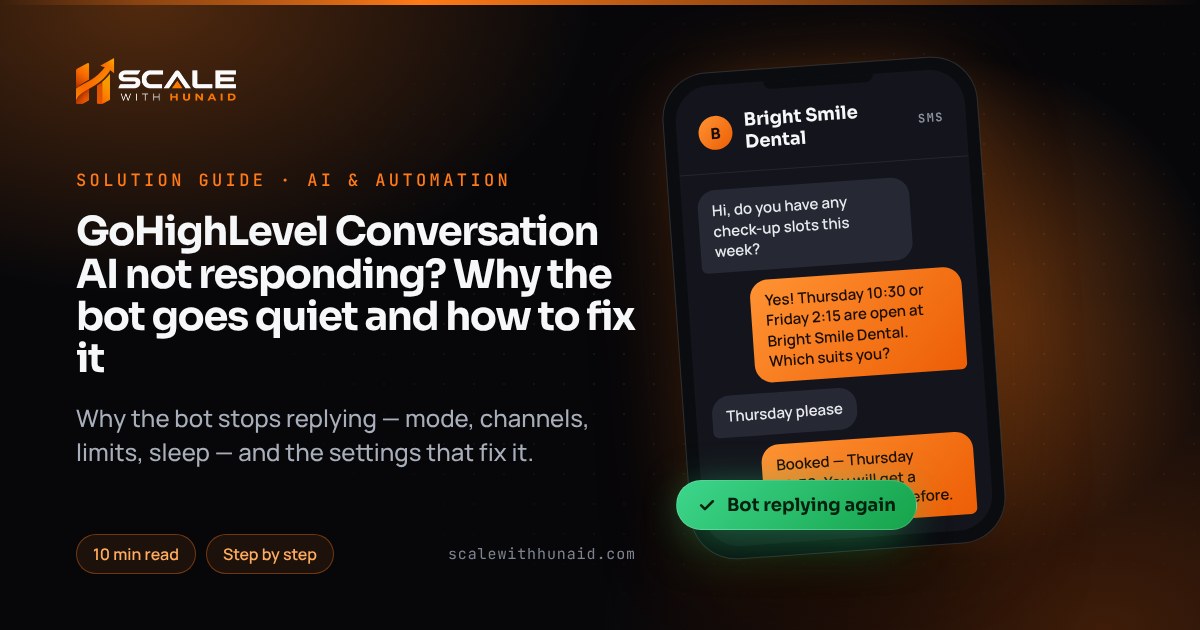
GoHighLevel Conversation AI not responding? Why the bot goes quiet and how to fix it
GoHighLevel Conversation AI not responding to messages? Every common cause — mode, channels, message limit, sleep and bot status — and the exact fix.

Key takeaways
- Most “Conversation AI not responding” reports are settings, not outages: the bot is in Off or Suggestive mode, is not deployed on that channel, or has been switched to Inactive for that one contact.
- A bot in Auto-Pilot goes dormant when it reaches its maximum message limit; marking the conversation as Read wakes it and resets the counter.
- Bots can be set to sleep whenever a manual or a workflow message is sent, so a team reply or a reminder workflow can silence the bot until its reactivation timer runs out.
- A contact who texts STOP, a Stop Bot condition with a 24-hour reactivation timer, or a workflow that set the bot status to Inactive will also keep the bot quiet for that contact.
- Agent Logs and the Response Info panel show which bot handled a message and what it did, so check them before changing settings.
When GoHighLevel Conversation AI stops responding, the AI model is almost never the problem. A bot goes quiet because of a setting: it is in the wrong mode, it is not deployed on the channel the message arrived on, it has hit its message limit, it was put to sleep by a team reply or a workflow, or its status was switched to Inactive for that one contact. Each of those has a specific place in HighLevel where you can see it and fix it.
This guide works through every common cause in the order I check them on client accounts, with the exact settings to change, a step-by-step checklist, and how to confirm the bot is answering again. It is the same process I use when I build and repair AI chat and voice agents inside HighLevel.
How Conversation AI decides whether to reply
Every inbound message passes four gates before the bot answers. If any one of them says no, the contact gets silence:
- Mode. In Off mode, Conversation AI does not respond. In Suggestive mode it drafts replies that a person has to review and send manually. Only Auto-Pilot sends replies on its own.
- Channel and bot. The bot must be switched on for that channel and, with Channel Management, for that specific page, number, account or widget.
- Contact status. The contact’s bot status must be Active. An Inactive status overrides the global settings for that contact until someone changes it back.
- Limits and sleep. The conversation must be under the message limit and the bot must not be sleeping after a manual or workflow message.
| Symptom | Most likely cause | Where to look |
|---|---|---|
| Bot never replies to anyone | Mode is Off or Suggestive | Bot settings → mode |
| Replies on SMS, silent on Instagram, Facebook or email | Channel not deployed for this bot | Bot → Deploy tab (or Bot Settings → channels) |
| Silent for one contact only | Contact status Inactive, STOP, or a Stop Bot condition | Status icon in the message composer |
| Stops after a long back-and-forth | Maximum message limit reached | Advanced settings → message limit |
| Stops after a team member or workflow texts | Sleep on manual or workflow message | Advanced settings → sleep options |
| Replies, but late | Long Wait Time Before Responding | Advanced settings → wait time |
| Wrong bot answers | Overlapping routing or a direct bot assignment | Agent Logs and Response Info |
- 100max bot messages per conversation (new-bot default)(HighLevel)
- 24hdefault Stop Bot reactivation timer(HighLevel changelog)
- 1,000agent responses a month on the Growth plan(HighLevel pricing)
Cause 1: the bot is in Off or Suggestive mode
New bots are easy to leave in the wrong mode, and Suggestive mode looks like a broken bot from the contact’s side: the reply is drafted in the inbox but nobody presses send.
Fix:
- Go to AI Agents → Conversation AI and open the bot (HighLevel’s setup guide uses the same path for creating one).
- Set the response mode to Auto-Pilot if the bot should answer by itself.
- Save, then send a test message from a phone that is not a team member’s number.
If you want a person to approve every reply, keep Suggestive mode — but then someone has to work the drafts in the Conversations inbox, or leads wait.
Cause 2: the bot is not deployed on that channel
HighLevel lists SMS, WhatsApp, Instagram, Facebook, Live Chat, the chat widget and email as Conversation AI channels, but each one has to be switched on for the bot. A bot that answers texts and ignores Instagram DMs is nearly always a channel setting.
There are two models, and which one you have matters:
- Primary and non-primary bots (older model). The primary bot handles general inbound messages; only one bot can be primary at a time. A non-primary bot only responds when a workflow step activates it — so a non-primary bot with no workflow behind it will never answer.
- Channel Management (newer model). Each bot gets a Deploy tab where you switch channels on per page, phone number, account or widget, and can require or exclude tags. HighLevel blocks two bots from sharing the same channel, destination and tag rules, and a bot assigned directly to a contact keeps that contact even when another bot’s rules match.
Fix:
- Check whether Channel Management is on. As of October 2026 it is a Labs feature: Settings → Labs, switch it on, and allow about five minutes for existing bots to migrate.
- Open the bot’s Deploy tab and switch on every channel it should answer — and the exact page, number or widget for each.
- Review the tag conditions. A rule such as “must have tag customer” silently excludes every new lead.
- On the older model, make the bot primary for general inbound messages, or add a workflow with the Conversation AI action that activates the non-primary bot.
- For email, connect at least one inbox first; without one the bot cannot answer inbound emails.
Cause 3: the bot hit its maximum message limit
In Auto-Pilot, the bot counts how many messages it has sent in a conversation. When it reaches the limit, it goes dormant. As of October 2026, HighLevel lets you set the limit from 1 to 100, with 100 as the default for new bots, after raising the ceiling from 25. Replies from your team, workflow messages and the contact’s own messages do not count towards it. Older HighLevel articles still mention a default of 10, so bots built a while ago may carry a much lower limit.
Fix:
- Open the conversation in the Conversations inbox and mark it as Read. That wakes the bot and resets the counter straight away.
- Open the bot’s advanced settings and check the message limit. For booking and FAQ bots I set it high enough to finish a full booking with follow-up questions — 20–30 is a sensible floor.
- If you want the bot to stop at a point on purpose, use a goal or a Stop Bot condition instead of a low cap, so it stops for a reason rather than mid-sentence.
Cause 4: a team reply or a workflow put the bot to sleep
This is the cause behind most “it worked yesterday” reports. A bot can be set to sleep when someone sends a message into the conversation. HighLevel split that setting into two separate options — Manual Message and Workflow Message — and existing bots kept their old behaviour, which in older bots meant sleeping after either. Older documentation describes a fixed two-hour sleep. The Reactivate bot after setting decides when it wakes.
So an appointment-reminder workflow that texts the contact can quietly put the bot to sleep, and the contact’s reply goes unanswered.
Fix:
- Open the bot’s advanced settings and find the sleep options (“Send bot to sleep when I send a…”).
- Tick Manual Message if the bot should step aside when your team takes over; untick Workflow Message unless you have a reason to keep it, so reminders and nurture texts do not silence the bot.
- Set Reactivate bot after to a duration that matches how long your team needs to finish a hand-off.
- Wake any contacts already asleep by marking their conversations as Read or setting their status back to Active (next section).
Cause 5: the bot is switched off for that one contact
When the bot answers everyone except one person, look at the contact. A contact’s bot status can be Active, Inactive, or snoozed with a reactivation time, and HighLevel sets Inactive automatically when the contact replies with an opt-out keyword such as STOP or the message limit is reached. Workflows can change it too: the Update Conversation AI Bot and Status action sets a bot to Active or Inactive on a trigger, and a Stop Bot condition’s reactivation timer defaults to 24 hours.
Fix:
- Open the contact’s conversation and click the Conversation AI status icon in the message composer.
- If it shows Inactive and the contact has not opted out, set it to Active.
- If the contact texted STOP, leave it off. Re-enabling the bot for someone who opted out is a compliance problem, not a fix — see my guide to SMS error 30007 and carrier filtering for why opt-outs matter.
- Search your workflows for the Update Conversation AI Bot and Status action and check the trigger and filters on each one. My guide to workflows that do not trigger as expected covers reading workflow history.
- In any Stop Bot condition, change the reactivation timer from 24 hours to something like 5–10 minutes if contacts often come back with another question — that is the value HighLevel itself recommends.
Bot goes silent
- Avoid: Left in Suggestive mode
- Avoid: Instagram not on the Deploy tab
- Avoid: Message limit of 10
- Avoid: Sleeps on workflow messages
- Avoid: Stop Bot timer left at 24 hours
Bot keeps replying
- Do: Auto-Pilot for automatic replies
- Do: Every channel and page deployed
- Do: Limit set for a full booking
- Do: Sleeps on manual replies only
- Do: Reactivates after 5–10 minutes
Cause 6: the bot replies, but too slowly
Wait Time Before Responding makes the bot collect several incoming messages and send one reply. Older HighLevel documentation allows 1 second to 5 minutes, with a 2-minute default. Two minutes on a live chat widget feels like nobody is there.
Fix: open the bot’s advanced settings and set the wait time to a few seconds for SMS and chat. Keep a longer wait only on channels where people send several short messages in a row.
The fix, step by step
- 1Read the logs firstAgent Logs show which bot ran and why.
- 2Set Auto-PilotOff and Suggestive never send by themselves.
- 3Deploy every channelEach page, number and widget on the Deploy tab.
- 4Raise the limitMark as Read, then set a realistic cap.
- 5Fix sleep rulesSleep on manual replies, not workflows.
- 6Reactivate contactsSet status to Active unless they opted out.
- Read the logs before changing anything. Agent Logs show each session’s conversation, execution timeline and action calls. On a reply that did go out, the Response Info panel shows which bot sent it, the prompt and the knowledge sources it used.
- Set the mode to Auto-Pilot for any bot that should answer on its own.
- Check the channels on the Deploy tab (or the bot’s channel settings and primary status on the older model), including tag rules and the email inbox.
- Mark stuck conversations as Read and raise the message limit.
- Set the sleep rules to Manual Message only, with a sensible Reactivate bot after duration.
- Reset contact status to Active for contacts who did not opt out, and fix the workflows and Stop Bot timers that switched them off.
- Confirm it worked. Send three messages from an outside number on each channel. You should see an AI reply within your wait time, the bot name in Response Info, and a new session in Agent Logs.
What Conversation AI costs as of October 2026
A bot can also stop because usage is not funded, so check billing when nothing else explains it. HighLevel’s AI pricing page lists three ways to pay for Conversation AI:
Pay-per-use has no monthly fee and is billed at token cost. Growth includes 1,000 agent responses a month, with overages at pay-per-use rates. Unlimited is subject to fair use.
On pay-per-use, usage comes out of the wallet, so an empty wallet with no recharge card is worth ruling out on an account where every bot stopped at once.
Mistakes that make the bot go quiet again
- Testing from a team member’s account, which trips manual-message sleep and looks like a fault.
- Adding a new bot that overlaps an old one. HighLevel blocks identical routing, but a direct bot assignment still wins, so the old bot keeps contacts you expected the new one to take.
- Never checking the limit on older bots. A bot built before HighLevel raised the ceiling may still have a low limit; check it rather than assuming 100.
- Reminder workflows that send the bot to sleep. Untick Workflow Message unless you want that.
- Reactivating contacts who texted STOP. Leave them off.
Keeping your AI chat answering every lead
A Conversation AI bot that answers in seconds is only useful if it answers every time. The bots that stay reliable are the ones with deliberate settings: Auto-Pilot, every channel deployed, a realistic limit, sleep only on manual replies, and logs checked after every change. When I set up AI automation for a business, those settings are documented and tested from outside numbers before launch.
If you prefer a dedicated AI booking agent on top of HighLevel, CloseBot is the alternative I set up. If the problem is on the phone side rather than chat, my guide to GoHighLevel Voice AI agents not working covers call routing, booking and transfers, and a clean GoHighLevel CRM setup keeps the workflows around the bot from switching it off.

References
- How to Configure Advanced Settings for Conversation AI Bots — HighLevel Support Portal
- Auto-Pilot Mode in Conversation AI — HighLevel Support Portal
- Bot Status for Individual Contacts — HighLevel Support Portal
- Primary vs Non-Primary Conversation AI Bots in HighLevel — HighLevel Support Portal
- Manage Conversation AI Bot Channels and Routing — HighLevel Support Portal
- Conversation AI Email Channel Support in HighLevel — HighLevel Support Portal
- Conversation AI – Separate Controls for Bot Sleep on Manual vs Workflow Messages — HighLevel Changelog
- Stop Bot Action — HighLevel Changelog
- Workflow Action – Update Conversation AI Bot and Status — HighLevel Support Portal
- Review AI Activity Using Agent Logs for Conversation AI — HighLevel Support Portal
- Response Info for your AI message — HighLevel Support Portal
- Guided Form Based Setup for Conversation AI — HighLevel Support Portal
- HighLevel AI Products Pricing: Voice AI, Agent Studio & More — HighLevel Support Portal
- California Business and Professions Code § 17941 (Bots: disclosure) — California Legislative Information