
Solution guide · GoHighLevel
GoHighLevel domain not connecting: how to fix DNS errors and SSL stuck on pending
GoHighLevel domain not connecting or SSL stuck pending? Find the conflicting DNS record, CAA or proxy setting and fix it step by step.

Key takeaways
- A GoHighLevel domain that will not connect almost always has a DNS problem: the records are at the wrong provider, the host field is wrong, or another record on the same name points somewhere else.
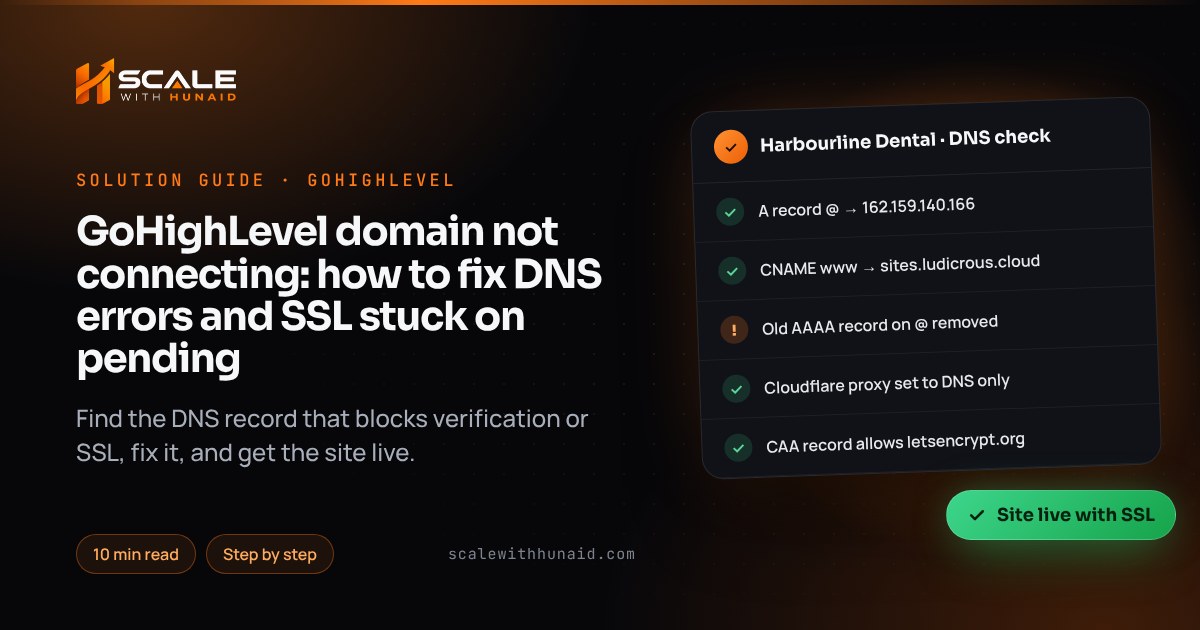
- For funnels and websites, point the root domain with an A record to 162.159.140.166 and a subdomain with a CNAME to sites.ludicrous.cloud — never both on the same host.
- SSL stuck on pending is usually caused by an AAAA record, a duplicate A record, a CAA record that does not allow Let’s Encrypt, or a Cloudflare record left on Proxied.
- Hostinger began switching on its CDN automatically for eligible shared hosting sites from 24 August 2026, which can overwrite the A record a GoHighLevel site depends on.
- Check the live records with Google’s Dig tool before you press Verify again, and allow up to 24 hours for changes to spread.
When a GoHighLevel domain is not connecting, HighLevel can’t find the DNS record it expects, or it finds a second record on the same name pointing somewhere else. The same goes for SSL stuck on “pending”: HighLevel issues the certificate automatically through Let’s Encrypt once DNS is clean, so a pending certificate means a record, a proxy or a CAA rule is getting in the way. The fix is to find that record. Pressing Verify ten times won’t do it.
In this guide I give you the records HighLevel needs, how to check what the internet actually sees, and the fix for each of the six causes I run into when I launch funnels and landing pages for clients. All menu paths are correct as of October 2026.
What records does GoHighLevel need for a funnel or website?
Before you troubleshoot, make sure you are aiming at the right target. HighLevel’s root domain and subdomain article gives these values for funnels, websites, stores, blogs and webinars:
| You are connecting | Record type | Host / Name | Value / Target |
|---|---|---|---|
Root domain (yourbusiness.com) |
A | @ |
162.159.140.166 |
Subdomain (www, offers, book) |
CNAME | the subdomain only, e.g. www |
sites.ludicrous.cloud |
| Subdomain (alternative) | A | the subdomain only | 162.159.140.166 |
Three rules from the same article matter more than the values:
- One record per host. Use an A record or a CNAME for a subdomain, never both.
- Only the subdomain goes in the Host field. Type
www, notwww.yourbusiness.com— many DNS panels add the domain for you, so you end up withwww.yourbusiness.com.yourbusiness.com. - Cloudflare records must be DNS only. Cloudflare’s proxy is not supported.
Other HighLevel domains — the API (link-branding) domain, the whitelabel app domain and email sending domains — use different targets. Don’t copy these values onto them. The values in your own Settings → Domains & URL Redirects screen are always the ones to trust.
Step 1: check what the internet actually sees
Most “it’s set up correctly” cases are wrong once you look at live DNS. Before changing anything, look it up.
- Open Google’s Dig tool.
- Enter your root domain and choose A. You want one answer:
162.159.140.166. - Choose AAAA for the same name. For a root domain on HighLevel you want no answer.
- Enter
www.yourbusiness.comand choose CNAME. You wantsites.ludicrous.cloud. - Choose CAA for the root domain. No answer is fine; if there are answers, one must say
letsencrypt.org. - Choose NS. Note the nameservers — that provider is where every record has to be edited.
If Dig shows the right values but they’re new, wait. HighLevel says to allow up to 24 hours, and Google notes DNS changes can take up to 72 hours to take effect everywhere.
Cause 1: the records are at the wrong DNS provider
This is the one I see most. The domain was bought at GoDaddy or Namecheap, but the nameservers point to Cloudflare, Hostinger or an old web host. You add the record at the registrar and nothing happens, because nobody is reading that zone. HighLevel’s guidance is direct: records must go where the nameservers point — if they point to Cloudflare, add them in Cloudflare, not GoDaddy.
Fix:
- Use the NS lookup from Step 1 to find the live provider (for example
*.ns.cloudflare.commeans Cloudflare). - Log in to that provider and open the DNS zone for the domain.
- Add the records from the table above there, and delete any copies you added at the registrar so you don’t get confused next time.
- Back in HighLevel, click Verify once Dig shows the new values.
Cause 2: a conflicting A, AAAA or CNAME record
A hostname can only point to one platform at a time. HighLevel lists multiple A records, an AAAA conflict and DNS records that don’t match as the most common connection errors. It also warns that stray AAAA records can block verification or SSL. The old site’s A record, an IPv6 AAAA record the host added automatically, or a www CNAME still pointing at WordPress all cause the “CNAME / A record not found” error.
Fix:
- In the DNS zone, filter by the host you are connecting (
@orwww). - Delete every A, AAAA and CNAME record on that host except the one HighLevel needs. Leave MX, TXT and other hosts alone — they run your email.
- Add the single correct record from the table.
- Re-run Dig for A, AAAA and CNAME and confirm only the HighLevel value comes back.
- Click Verify in HighLevel.
Cause 3: Cloudflare is proxying the record
Cloudflare’s proxy status documentation explains that a proxied (orange cloud) record answers with Cloudflare’s own addresses instead of your target. HighLevel then sees Cloudflare, not its own server, and can’t verify the domain or issue SSL. Cloudflare lists SaaS-hosted websites among the typical uses for DNS-only records, and HighLevel requires DNS only.
Fix:
- In Cloudflare, go to your domain → DNS → Records.
- Click Edit on the
@A record and thewwwCNAME that point to HighLevel. - Switch Proxy status from Proxied to DNS only — the cloud turns grey. Save.
- Check there is no second proxied A or AAAA record on the same name. Cloudflare treats every A/AAAA record on a name as proxied if any one of them is.
- Wait a few minutes, then click Verify in HighLevel.
Cause 4: a CAA record blocks the SSL certificate
A CAA record lists which certificate authorities may issue SSL for your domain. If one exists and it doesn’t name Let’s Encrypt, HighLevel’s certificate request is refused — that’s the “CAA block issuance” error. Let’s Encrypt’s CAA documentation explains that one issue record covers both the domain and wildcards, and that the check climbs up to the parent domain, so a CAA record on yourbusiness.com also affects offers.yourbusiness.com.
Fix:
- Look up CAA for the root domain in Dig.
- If nothing comes back, CAA is not your problem — move on.
- If records come back and none name
letsencrypt.org, add one more CAA record on@: flag0, tagissue, valueletsencrypt.org. In zone-file form that isyourbusiness.com. CAA 0 issue "letsencrypt.org". - Keep the existing CAA records if another service needs them; just add Let’s Encrypt alongside.
- Make sure your provider saved it as a real CAA record, not a TXT record with the same text — some panels hide CAA under an advanced view.
If the domain is on Cloudflare, note that Cloudflare adds its own CAA records once you create any of yours, and those don’t appear in the dashboard. Let’s Encrypt is in Cloudflare’s set, but check with Dig rather than the dashboard.
Cause 5: your host changed the records for you
Some hosts rewrite DNS behind your back. Hostinger’s CDN article says it began switching on its CDN automatically for eligible shared hosting websites from 24 August 2026, and that this updates the domain’s A and AAAA records and may overwrite custom records pointing to an external server. A GoHighLevel site that worked in July can stop working with no change on your side. Hostinger says only zones it manages are affected — domains on external nameservers are not.
Fix (Hostinger):
- Go to Websites → Dashboard → Performance → CDN and click Disable.
- Wait a few minutes for the original records to return, then open Domains → Manage → DNS/Nameservers.
- Following Hostinger’s GoHighLevel guide, delete the AAAA record on
@and the existing A record on@. - Add the A record
@→162.159.140.166and the CNAMEwww→sites.ludicrous.cloud, plus any TXT value HighLevel shows you. - Leave the CDN off for this domain — switching it back on replaces the records again.
The same pattern applies elsewhere: if a hosting panel offers a CDN, “speed boost” or parking page for the domain, turn it off for any host that points to HighLevel.
Cause 6: the domain is already connected somewhere else
HighLevel runs a conflict check before DNS validation. If the domain is already used by another product type it blocks the connection, names the product that holds it and, where it can, links you to it. You can’t override it. Email sending domains are excluded from the check. HighLevel also says the same domain or subdomain can’t be used in two locations at the same time.
Fix:
- Read the error — it names the product (for example a website, a client portal or another funnel).
- Open that product and remove the domain from its settings, or delete it under Settings → Domains & URL Redirects.
- If it is connected in a sub-account you don’t control, HighLevel’s advice is to ask the current owner to remove it, or contact support if ownership is unclear.
- Prefer a different subdomain per product (
book.,offers.,members.) so they never collide.
How to connect the domain properly, start to finish
Once the DNS is clean, this is the sequence I use, from HighLevel’s setup article:
- Publish the funnel or website first, so there is a page to serve.
- In the sub-account, go to Settings → Domains & URL Redirects and click Connect a domain.
- Choose Connect under Funnel / Website / Store / Blog / Webinar and enter the domain without
https://. - Click Continue to use Domain Connect if your provider is supported (HighLevel names GoDaddy, Cloudflare and IONOS) — sign in and approve. Otherwise choose Add record manually and add the records from the table.
- For a root domain, leave the option to add
wwwswitched on. HighLevel adds it with a 301 redirect fromwwwto the root. - When the record verifies, pick the funnel or website and its default page, then click Link Domain.
- Open the domain in a private window and check the padlock shows a valid certificate.
| Symptom | Most likely cause | Go to |
|---|---|---|
| “CNAME / A record not found” | Wrong DNS provider, or full domain in the Host field | Cause 1 |
| Verifies, then SSL stays pending | AAAA or duplicate record, or Cloudflare proxy | Causes 2 and 3 |
| “CAA block issuance” | CAA record without letsencrypt.org |
Cause 4 |
| Worked before, now broken | Host CDN or panel rewrote records | Cause 5 |
| “Domain already connected” | Used by another product or location | Cause 6 |
404 on www or the root only |
Other version not linked or redirected | Below |
Fixing the 404 on www or the root domain
HighLevel says an intermittent 404 usually means visitors reach the version of the domain — www or non-www — that isn’t linked to anything.
- Decide which version is the main one. I use the root for most local businesses.
- Make sure both versions have a record in DNS (A on
@, CNAME onwww). - Go to Settings → Domains & URL Redirects → URL Redirects and add a 301 from the other version to the main one. HighLevel’s redirect guide notes the domain you redirect from must already be added to the sub-account.
- Test both versions in a private window — both should land on the same page with a padlock.
Mistakes to avoid
- Deleting MX or TXT records while cleaning up. Only remove A, AAAA and CNAME records on the host you are connecting, or you can break email.
- Leaving Cloudflare on Proxied “for speed”. HighLevel needs DNS only.
- Re-verifying every five minutes. Check Dig instead; once the values are right, verification follows.
- Using one subdomain for two products. Give each funnel, portal and site its own.
- Forgetting the redirect. Without it, half your visitors see a 404.
Get your domain and pages live
A GoHighLevel domain that won’t connect is a DNS problem with a definite answer: wrong provider, a conflicting record, a proxy, a CAA rule, a host rewriting records or a domain used twice. If you’d rather hand it over, I connect domains and build the pages on them as part of funnel and landing page design and GoHighLevel CRM setup. Once the site is live, make sure the leads it captures are followed up — my guide to a GoHighLevel workflow not triggering covers that side. If your problem is a sending domain for email rather than a website, start with Gmail’s 550 5.7.26 error instead.

References
- How to Set Up Root Domain/Subdomain for Funnels/Websites — HighLevel Support Portal
- Connecting Your Domain on GHL — A Guide — HighLevel Support Portal
- Prevent Domain Connection Conflicts in HighLevel — HighLevel Support Portal
- How to Use the Domain Connect Feature — HighLevel Support Portal
- In-App Troubleshooting Links for Domain Setup Errors — HighLevel Changelog
- Set Up a Whitelabel Domain for the Desktop App — HighLevel Support Portal
- Complete Guide to Setting Up 301 URL Redirects in HighLevel — HighLevel Support Portal
- Certification Authority Authorization (CAA) — Let’s Encrypt
- Proxy status — Cloudflare DNS docs
- Add CAA records — Cloudflare SSL/TLS docs
- How to Point a Domain to GoHighLevel at Hostinger — Hostinger Help Center
- Hostinger CDN and Your DNS Records — Hostinger Help Center
- Dig (DNS lookup) — Google Admin Toolbox
- Troubleshoot A records — Google Workspace Admin Help