Solution guide · GoHighLevel
GoHighLevel Google Ads conversions not working: why they are skipped and how to fix them
GoHighLevel Google Ads conversions not working? Fix missing GCLIDs, conversion name mismatches, skipped workflow actions and upload errors step by step.

Key takeaways
- When GoHighLevel Google Ads conversions are not working, open the workflow’s Execution Logs first: “Skipped” on the Add to Google Ads action almost always means a missing GCLID or a conversion name that does not match.
- The contact must carry a Google click ID (GCLID, GBRAID or WBRAID) captured from the ad click, so auto-tagging must be on and the landing page must keep the gclid parameter through every redirect.
- A conversion action set to One Per Click needs a GCLID, because GBRAID and WBRAID only work with Many Per Click counting.
- Google only accepts a GCLID conversion up to 90 days after the click, and a new conversion action should wait 4–6 hours before its first upload.
- From 15 June 2026 the Google Ads API stopped accepting new adopters of offline conversion imports, so anyone building their own upload in n8n, Make or code must use the Data Manager API.
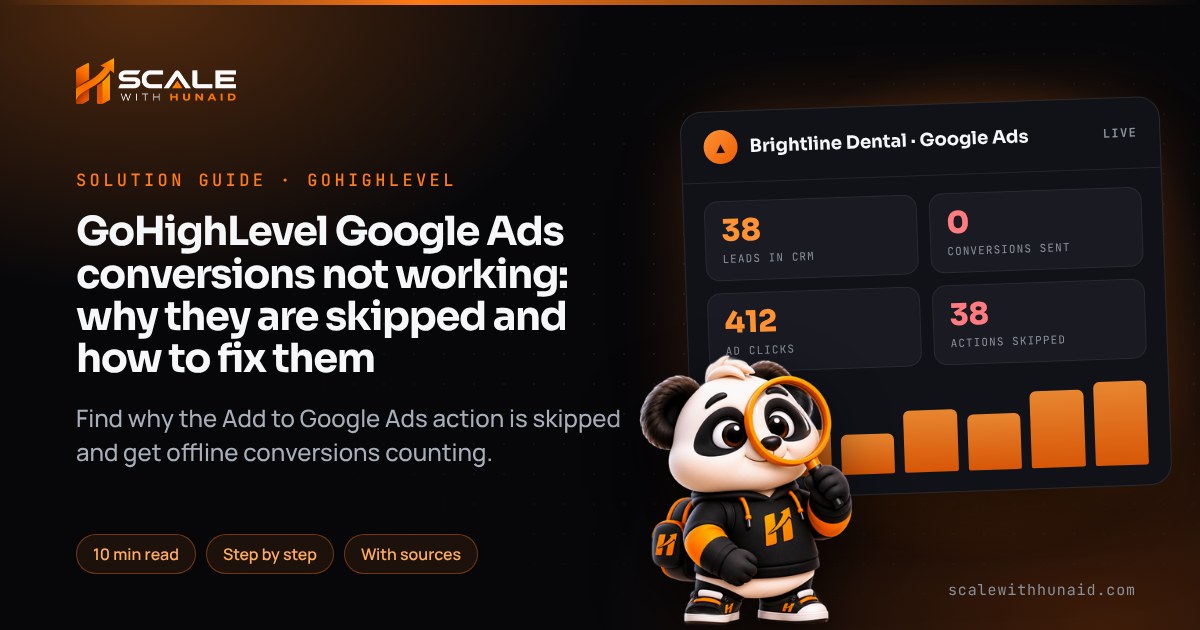
When GoHighLevel Google Ads conversions are not working, the workflow is usually running fine and the Add to Google Ads action is being skipped. HighLevel’s own help article gives the two main reasons: the contact has no GCLID, or the conversion name doesn’t match. Less often the conversion was sent and Google rejected or delayed it: the click was too old, the conversion action was brand new, or the counting setting needs a click ID the contact doesn’t have.
In this guide I show you how to tell which of those happened, then give you the fix for each one: capturing the click ID, setting up the conversion action on both sides, the workflow action itself and Google’s upload errors. It is the order I check tracking in when I do a GoHighLevel CRM setup for a business running Google Ads. Menu paths and rules are as of November 2026.
How GoHighLevel sends conversions to Google Ads
GoHighLevel doesn’t put a pixel on your thank-you page for this. It sends an offline conversion: when a workflow reaches the Add to Google Ads action, HighLevel looks up the Google click ID stored on the contact and tells Google “this click became a lead (or a sale)”. Google then matches it back to the ad, keyword and campaign.
That chain has four links, and a break in any one gives you the same symptom of zero conversions in Google Ads:
- Auto-tagging in Google Ads adds a
gclidto every ad click URL. Google turns it on by default for new accounts, but it is often switched off in older ones. - The landing page keeps the gclid until the form, calendar or chat is submitted, and HighLevel stores it on the contact. HighLevel classes a contact as Paid Search when a gclid, gbraid or wbraid is present.
- A conversion action exists in Google Ads with exactly the name the workflow uses.
- The workflow fires the Add to Google Ads action, and Google accepts the upload.
- 1Read the execution logExecuted or Skipped tells you where to look.
- 2Turn on auto-taggingEvery ad click must carry a gclid.
- 3Keep the gclid on the pageNo redirect or iframe may drop it.
- 4Match the conversion namePick it from the dropdown, never type it.
- 5Fix the counting settingOne Per Click needs a GCLID.
- 6Test, then wait 72 hoursGoogle can take up to 3 days.
Check the execution log first
Before changing anything, find out whether HighLevel sent the conversion.
- Open Automation → Workflows and the workflow that holds the Add to Google Ads action.
- Click Execution Logs and filter to a contact who should have converted.
- Look at the Add to Google Ads step. HighLevel shows Executed when the conversion reached Google Ads and Skipped when something went wrong, such as a missing GCLID or a mismatched name.
Then match what you see to the fix:
| What you see | Most likely cause | Go to |
|---|---|---|
| No log entry at all | The workflow never reached the action | Fix 4 |
| Skipped, contact has no click ID | Auto-tagging off, or gclid lost on the page | Fix 1 |
| Skipped, contact has a click ID | Conversion name mismatch or wrong counting setting | Fix 2 and Fix 3 |
| Executed, nothing in Google Ads | Google is still processing or rejected the upload | Fix 5 |
| Conversions counted twice | Two Primary actions for the same lead | Fix 5 |
Fix 1: the contact is missing its GCLID
This is the most common cause. If the contact never stored a click ID, Google has nothing to match, and no workflow setting will change that.
- Turn on auto-tagging. In Google Ads, go to Admin → Account settings → Auto-tagging, tick “Tag the URL that people click through from my ad” and save. If you use cross-account conversion tracking, Google says you must turn it on in each child account.
- Send ads to a page that keeps the parameter. Google’s auto-tagging help notes that some sites strip unknown URL parameters, and that click-trackers and server-side redirects must pass the GCLID on. Point the final URL at the real landing page, not at a redirect or a link shortener. Test by adding
?gclid=test123to the URL in a browser and checking it is still there once the page loads. - Use a HighLevel form, survey, calendar or chat widget on the landing page where you can. These capture attribution data when a contact completes them. On a WordPress or Webflow page, install HighLevel’s External Tracking script, which captures UTMs, page URLs and session data from supported forms.
- Be careful with iframes. A HighLevel form embedded in an iframe on another site sits on a different page from the ad landing URL, so test this exact setup end to end before you trust it. If the click ID is not stored, put the form on a HighLevel funnel page, or capture the gclid into a hidden field and map it in the next step.
- Don’t add your own UTMs to Google Ads final URLs. HighLevel’s attribution article recommends against custom UTM parameters on Google Ads URLs, because they change how the source is classified.
- Test it. Click your own ad, or use the
?gclid=test123URL, and submit the form with new details in a private window. Open the contact: the source should read Paid Search. If you still use the old UTM template method, follow HighLevel’s Google Ad Reporting setup as well.
Fix 2: the conversion action or its name doesn’t match
HighLevel can only send to a conversion action that already exists in your Google Ads account, and the name has to match exactly.
- Create the conversion action. You can do it in HighLevel under Ad Manager → Settings → Google Ads → Conversions, which creates it in Google Ads through the API. Or create it in Google Ads under Goals → Summary → + Create conversion action → Import → CRMs, files, or other data sources → Track conversions from clicks, as in Google’s import steps and HighLevel’s platform-side setup. Do one or the other, not both, or you will end up with two actions with similar names.
- Choose a lead goal. Google recommends “Qualified lead” or “Converted lead” for imported lead conversions.
- Wait before the first upload. Google says to wait 4–6 hours after creating a new conversion action before uploading to it. Conversions sent sooner can take two days to appear.
- Select the name from the dropdown. In the workflow, open the Add to Google Ads action and pick the conversion from the list. HighLevel warns that the name must match exactly, including capitals, spacing and punctuation. If you rename the action in Google Ads, re-select it and publish the workflow again.
- If the dropdown is empty, check that the Google account is connected under Settings → Integrations and that at least one offline conversion action exists. HighLevel says the dropdown stays blank without one.
Fix 3: the counting setting needs a GCLID
Some ad clicks carry a GBRAID or WBRAID instead of a GCLID. HighLevel’s action supports all three, but with a catch: a conversion set to One Per Click needs a GCLID, because GBRAID and WBRAID only support Many Per Click.
- In Google Ads open the conversion action’s settings and find the Count option.
- If leads with a GBRAID or WBRAID are being skipped, switch Count to Every (Many Per Click), or accept that those leads can’t be counted against that action.
- If the click ID lives in a custom field (for example from a hidden form field), turn on Custom Mapping in the action and map GCLID, GBRAID or WBRAID to that field. HighLevel added this so you are not limited to the automatically captured values.
- Set the value. The action has Currency and Conversion Value fields; Currency defaults to USD and the value is pre-filled as 1. Change both to your currency and a realistic value, or Smart Bidding treats every lead as worth one dollar.
Fix 4: the workflow never reaches the action
If the execution log has no Add to Google Ads entry, the problem is the workflow, not Google.
- Check the workflow is Published and the trigger filter points at the right form, calendar or pipeline.
- Put the action straight after the trigger for a first test, with no waits or If/Else branches in front of it.
- Test the trigger you use. An older HighLevel ideas-board request says the action only worked with some triggers (form submitted, appointment booked, product purchase, link clicked, page visit) and not with opportunity stage changes. If your action is skipped behind a Pipeline Stage Changed trigger, test the same contact through a Form Submitted workflow to rule it out.
- For anything else on triggers, re-entry and filters, work through my guide to GoHighLevel workflows not triggering.
Fix 5: HighLevel sent it, but Google didn’t count it
If the log says Executed, the conversion left HighLevel. Now it’s Google’s rules.
- Wait. Google says processing usually takes under 12 hours but can take up to 72 hours for GBRAID and WBRAID conversions.
- Check the click age. Google keeps a GCLID for 90 days, and conversions for older clicks, or clicks outside the action’s click-through window, are rejected as EXPIRED_EVENT (“click too old”). For long sales cycles, send an earlier stage (booked call) as well as the sale.
- Check the time zone. A conversion can’t happen before its click. Google’s fix for “conversion precedes click” is to check that the time zone is set correctly. Make the sub-account time zone under Settings → Business Profile match the Google Ads account.
- Read the import status. In Google Ads open Goals → Summary, click the conversion action and check its status and any upload errors. Google’s discrepancy and error guide lists each import error and its fix.
- Stop double-counting. If a website conversion tag and the offline action both count the same lead, set one of them to Secondary so only one is used for bidding.
| Upload error | What it means | Fix |
|---|---|---|
| Click too old | Over 90 days, or outside the lookback window | Send an earlier event, or use a longer window for new clicks |
| Conversion precedes click | Conversion time is earlier than the click | Match HighLevel and Google Ads time zones |
| Too recent | The click is under 6 hours old | Send it again after 6 hours |
| Unparseable GCLID | The click ID was changed or cut short | Map the original field; don’t edit click IDs |
| Conversion action not found | Wrong account or wrong action type | Use an Import-from-clicks action in the clicked account |
Sources: Google Ads API ConversionUploadError and offline conversion import FAQs.
Maximum days after the click (or the original conversion, for adjustments). Send conversions as soon as the lead qualifies, not at month end.
The 63-day limit for enhanced conversions for leads comes from Google’s import guidelines, and the 55 days for restating a value from Google’s conversion adjustments help.
What changed in 2026: the Data Manager API
On the Google Ads Developer Blog, Google announced that from 15 June 2026 the Google Ads API no longer accepts new adopters of offline conversion import, including enhanced conversions for leads. Projects that were already uploading can carry on while they move, and new ones must use the Data Manager API, which doesn’t need a developer token. Google’s pages give slightly different activity windows for who counts as an existing adopter, so check the current rule before relying on it.
What that means for you:
- Native HighLevel action: if the log shows Executed and conversions appear, nothing to do.
- Your own upload in n8n, Make, Zapier or code: if it was set up after June 2026, or stopped working around then, rebuild it on the Data Manager API. My n8n, Make and Zapier automation work includes moving these.
- Enhanced conversions for leads: Google calls click-only import a legacy approach and recommends enhanced conversions for leads, which matches hashed email or phone instead of only the click ID. A HighLevel ideas-board request asks for email to be passed for enhanced conversions, so check whether your account’s action supports it before you rely on it.
Mistakes that keep conversions at zero
Stays at zero
- Avoid: Auto-tagging switched off
- Avoid: Ads through a redirect link
- Avoid: Conversion name typed by hand
- Avoid: One Per Click with iPhone leads
- Avoid: Value left at $1 USD
- Avoid: Uploads after 90 days
Counts in Google
- Do: Auto-tagging on in every account
- Do: Final URL is the real page
- Do: Name picked from the dropdown
- Do: Counting matched to click IDs
- Do: Real value in your currency
- Do: Sent when the lead qualifies
The one I see most is a funnel that looks fine but sends ads through a tracking link or a redirect that drops the gclid. Every lead arrives without a click ID, every action is skipped, and the account owner decides Google Ads doesn’t work. Five minutes with a test URL would have shown it.
Getting Google Ads and GoHighLevel to agree
GoHighLevel Google Ads conversions work when four things are in place: auto-tagging on, a landing page that keeps the click ID, a conversion action whose name and counting setting match the workflow, and an action that fires on the event you actually want more of. Check the execution log after every change and give Google up to three days before deciding it failed.
If you’d rather hand it over, I set up ad tracking end to end as part of a GoHighLevel CRM setup, and build landing pages that keep their tracking in funnels. If leads aren’t reaching the CRM in the first place, start with GoHighLevel form not working, and for Meta ads see Facebook leads not syncing to GoHighLevel.

References
- How to Use Add to Google Ads Action in HighLevel Workflows — HighLevel Support Portal
- Google Ads Conversion Actions — Platform-Side Setup — HighLevel Support Portal
- Create & Manage Google Ads Offline Conversions in HighLevel Ad Manager — HighLevel Support Portal
- Currency and Conversion Value in Google Ads Conversion Action — HighLevel Changelog
- Understanding Attribution Traffic Sources — HighLevel Support Portal
- How to set up Google Ad Reporting — HighLevel Support Portal
- Capture External Form Submissions Automatically (Tracking External Forms) — HighLevel Support Portal
- Update Triggers for “Add to Google Adwords” to include Opportunity Stage change — HighLevel Ideas
- Google Ads Enhanced Conversion Tracking: Pass Email Information from HL Forms to Website — HighLevel Ideas
- About auto-tagging — Google Ads Help
- Enable auto-tagging — Google Ads Help
- Set up offline conversions using Google Click ID (GCLID) — Google Ads Help
- Offline conversion imports FAQs — Google Ads Help
- Guidelines for importing offline conversions — Google Ads Help
- Fix discrepancies and errors in offline conversion imports — Google Ads Help
- How to adjust your conversions — Google Ads Help
- About enhanced conversions for leads — Google Ads Help
- Changes to Offline Click Conversion Import Support in the Google Ads API — Google Ads Developer Blog
- Upgrade from the Google Ads API — Google for Developers (Data Manager API)
- ConversionUploadError — Google for Developers (Google Ads API)