
Solution guide · GoHighLevel
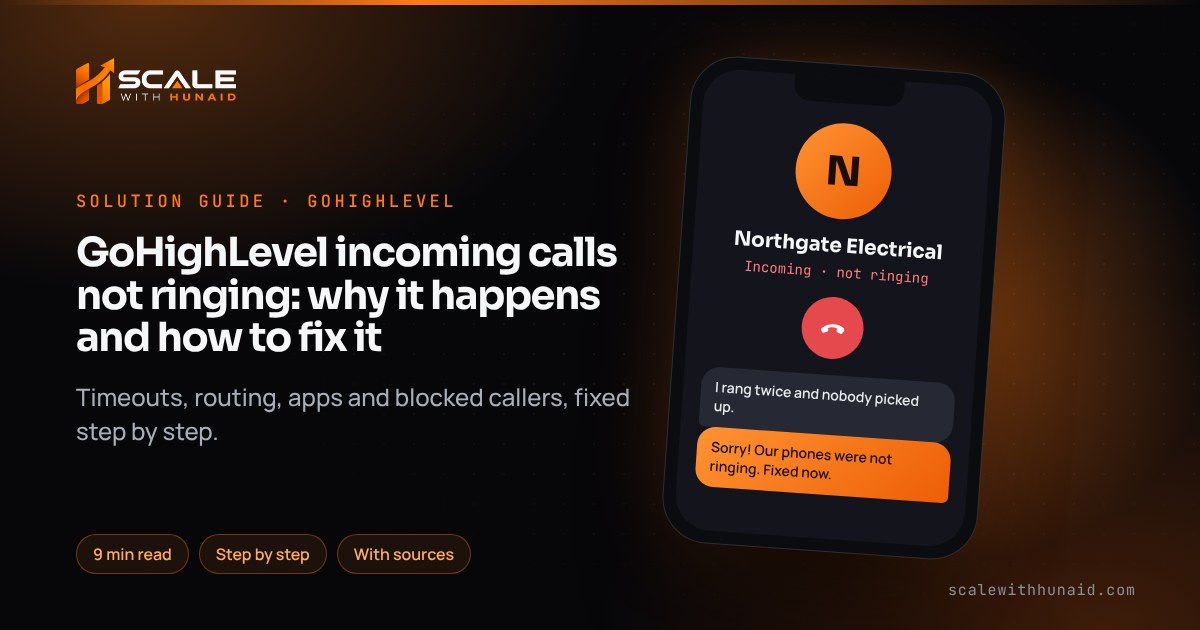
GoHighLevel incoming calls not ringing: why it happens and how to fix it
GoHighLevel incoming calls not ringing? Fix the call timeout, routing, mobile app, web dialer, IVR, forwarding loops and blocked callers step by step.

Key takeaways
- Most GoHighLevel incoming calls that do not ring come from six places: an incoming call timeout outside 15–20 seconds, a number with no user or forwarding destination, a mobile app that was never set to receive calls, a browser without microphone access, an IVR or Voice AI agent answering first, or a blocked caller.
- HighLevel’s guidance is an incoming call timeout of about 20 seconds: below 15 seconds calls may not ring at all, and above 20 seconds carrier voicemail can answer first and the call is logged as Completed.
- Only the highest available routing priority rings, so an IVR, a Voice AI agent set to answer directly, or the contact owner can take the call before your team ever hears it.
- The LeadConnector mobile app only rings when the staff member has an inbound number and the mobile app box ticked under Call and Voicemail Settings, and the phone allows notifications and background running.
- A contact with inbound DND, or a caller who breaks HighLevel’s inbound rate limits, is blocked before the call reaches anyone.
When GoHighLevel incoming calls are not ringing, the phone line is almost never broken. In nearly every account I fix, the call is arriving fine and being sent somewhere else: the incoming call timeout is outside the range HighLevel recommends, the number has nobody to ring, the mobile app or browser was never set up to receive calls, an IVR or Voice AI agent answers first, the call loops through a forwarding number, or the caller is blocked.
This guide shows how HighLevel decides who rings, how to find your cause in a few minutes, and then the exact fix for each one, using HighLevel’s menus as of November 2026. It is the same check I run when I set up a GoHighLevel CRM and phone system for a client.
How GoHighLevel decides which phone rings
Every incoming call follows a fixed order. HighLevel’s inbound call guide lists it as:
- IVR or workflow routing, or a Voice AI agent set to answer directly.
- Owner-based routing: the user assigned to the phone number, or the contact’s assigned user.
- Team devices, including any extra users you added to ring.
- The forwarding number set on the phone number.
- The backup, such as Voice AI or voicemail, if nobody answers before the timeout.
The rule that catches people out is that only the highest available priority rings. If an IVR is attached, it takes the call. If the contact belongs to a salesperson, their phone rings before the main forwarding number. HighLevel’s incoming call settings article describes a slightly different list (IVR, number user, contact user, ring-all, forwarding number), so I always confirm the real order with a test call rather than trusting either page alone.
- 1Set a 20-second timeoutBelow 15s calls may not ring at all.
- 2Give the number a userOr a forwarding number to ring.
- 3Switch on the mobile appTick it in Call and Voicemail Settings.
- 4Allow the microphoneThe web dialer needs it to ring.
- 5Check IVR and Voice AIThey answer before your team.
- 6Unblock the callerInbound DND and rate limits block calls.
Find the cause in five minutes
Ring your HighLevel number from a mobile that is not in the account, then open the call in Conversations and the contact’s activity. Match what happened:
| What you see | Likely cause | Go to |
|---|---|---|
| One short ring, then voicemail | Timeout below 15 seconds | Cause 1 |
| Your mobile carrier’s voicemail answers, call logged as Completed | Timeout above 20 seconds | Cause 1 |
| Nothing rings, caller goes to HighLevel voicemail | No user or forwarding number on the number | Cause 2 |
| Web app rings, phone app silent | Mobile app not enabled or blocked by the phone | Cause 3 |
| Phone app rings, browser silent | Microphone blocked or extension interfering | Cause 4 |
| Caller hears a menu or an AI voice | IVR or Voice AI answering first | Cause 5 |
| Calls repeat or duplicate in Conversations | Forwarding loop | Cause 6 |
| One caller never gets through | Inbound DND or rate limit | Cause 7 |
Cause 1: the incoming call timeout is wrong
The timeout is how long HighLevel rings your people before moving to the backup. HighLevel added a healthy timeout warning because this setting causes so many missed calls. Below 15 seconds, calls may not come through at all or ring too briefly. Above 20 seconds, the call can reach your mobile carrier’s voicemail, and HighLevel logs it as Completed rather than as a voicemail, so it looks answered when it was not.
The fix:
- Go to Settings → Phone Numbers → Manage Numbers.
- Click the three-dot menu next to the number and choose Edit Configuration.
- Open the call forwarding settings and set Incoming Call Timeout to 20 seconds, the starting point HighLevel recommends. Save.
- Turn off carrier voicemail on any personal mobile that receives forwarded calls, or keep the timeout under 20 seconds so HighLevel’s voicemail answers first. HighLevel’s voicemail article says the timeout should be less than 20 seconds if voicemail is not playing.
- Test from an outside phone and let it ring out. You should hear your HighLevel voicemail greeting, not your carrier’s.
Cause 2: the number has nobody to ring
A number bought in the sub-account but never assigned to a user, with no forwarding number, has no one to ring. HighLevel changed this in March 2026: such calls now go to voicemail instead of being rejected. So “every call goes straight to voicemail” now often means “this number has no destination”.
The fix:
- Go to Settings → My Staff, click Edit on the person who should answer, and open Call and Voicemail Settings.
- Choose the number as their Inbound Number and save. HighLevel’s mobile calling article says inbound calling needs a number bought in the sub-account and assigned to a user.
- If a whole team should answer, add the other users in the number’s Edit Configuration so their devices ring as well.
- Optionally, add an outside forwarding number in the same configuration as the last human destination.
- Check contact ownership: if a contact is assigned to someone who has left, reassign them, because owner-based routing is checked before the forwarding number.
Cause 3: the LeadConnector mobile app does not ring
The mobile app only rings when the user has asked for calls on it and the phone lets the app wake up.
The fix:
- In Settings → My Staff → Edit → Call and Voicemail Settings, tick the Mobile app box under Forward Calls to, check the inbound number is set, and click Save. HighLevel’s article lists an unsaved change here as a common cause.
- On the phone, allow the app’s notifications, microphone access and background running. On Android, turn off battery optimisation for the app.
- Open the app in the sub-account that owns the number. The same article says calls route to the last sub-account you switched to.
- If you work across several sub-accounts, turn on Multi-Location Incoming Calls in the app under Settings → Calls/Voice. The changelog says you can ring for up to 10 locations you are a member of.
- If you ticked both web and mobile and only the mobile stays silent, test with mobile alone. One user reported on HighLevel’s ideas board that ticking both stopped the app ringing; HighLevel has not confirmed it, but it is a quick test.
HighLevel’s mobile inbound article was written for the Android release, so on an iPhone, update to the latest app version before going further.
Cause 4: the web app does not ring
The browser dialer needs microphone access. HighLevel’s audio settings article says it is required for placing and receiving calls.
The fix:
- Use Google Chrome, which HighLevel says gives the most stable calling.
- Click the site information icon to the left of the address bar and set Microphone to Allow, then reload HighLevel.
- Open the dialer’s Audio Device Settings, check the right microphone and speaker are chosen and not muted.
- Add a second ringing device, such as laptop speakers, so you hear inbound calls even with a headset unplugged. It rings for inbound calls only.
- Test with VPNs, ad blockers and privacy extensions turned off, and close other apps that may hold the microphone.
Cause 5: an IVR or Voice AI agent answers first
If the number runs an IVR, the IVR answers every call and people only ring when a menu choice sends it to them. Voice AI set to Answer calls directly does the same.
The fix for an IVR:
- Open the IVR workflow and check it starts with the Start IVR trigger for the right number. HighLevel notes a number can only belong to one IVR workflow, so a missing number in the dropdown is already used elsewhere.
- Make sure every menu branch ends in an IVR Connect Call step to a user or number, then Save and Publish the workflow, as the IVR guide requires.
- In My Staff → Edit → Call and Voicemail Settings, set each person’s Default channel for IVR to web app, mobile app or phone number, so the in-app IVR call reaches their device.
The fix for Voice AI: in the agent’s phone settings, switch the number from Answer calls directly to Use as backup if your team should ring first, then set the timeout back to about 20 seconds.
Cause 6: a forwarding loop
HighLevel warns about redirect loops: number A forwards to number B, and number B routes back to A. The call bounces instead of ringing, and you may see repeated or duplicate calls in Conversations.
The fix:
- Write down every number in the path: the HighLevel number, its forwarding number, each user’s phone, and the Business Profile number.
- Remove any step that sends a call back to a number earlier in the path. Forward to an outside mobile, landline or VoIP line, not another HighLevel number.
- If you forward your old business line to HighLevel, do not also forward HighLevel back to that line.
- Test from a different phone. If calls still repeat, turn forwarding off and add it back one step at a time.
If you bring your own Twilio account, also check the number’s voice webhooks. HighLevel’s Twilio setup needs one endpoint for new calls and one for call status, on the Twilio subaccount that owns the number.
Cause 7: the caller is blocked
Two things stop a caller before anyone rings. First, a contact with inbound DND turned on: HighLevel says this blocks inbound calls from that number. It can also be switched on by a spam-call workflow that caught a real customer. Second, HighLevel’s inbound rate limits:
A call above these limits is blocked; more than five breaches in an hour can block inbound calls for the account. IVR numbers are excluded.
Source: HighLevel, Inbound Call Rate Limits Explained (2026)
The fix:
- Open the contact, check the DND settings and turn off inbound DND for calls if they are a genuine caller.
- Open any workflow using the Enable/Disable DND action with a spam disposition, and make sure only calls a person marked as spam reach it.
- If a busy call centre or test script calls one number repeatedly, spread the calls or use an IVR number. If inbound calls are blocked account-wide after repeated breaches, HighLevel says you need its support team to restore them.
Number Intelligence on its own only labels a caller Spam Likely; it does not block the call. If your outbound calls are the ones being labelled, see my guide to calls showing Spam Likely.
Common mistakes to avoid
Calls go missing
- Avoid: Timeout copied from Voice AI
- Avoid: Number with no user
- Avoid: Mobile box never saved
- Avoid: Microphone left on Ask
- Avoid: Forwarding back to itself
Every call rings
- Do: 20-second timeout
- Do: Number assigned to a user
- Do: App rings in the right account
- Do: Chrome with mic allowed
- Do: Forward to an outside line
- Testing from your own number. Your mobile may be a user or a blocked contact in the account. Always test from an outside phone.
- Changing three settings at once. Change one thing, test, then the next, or you will not know what fixed it.
- Forgetting the safety net. Once calls ring, set up missed call text back so the calls nobody answers still get a reply.
Confirm it is fixed
You are done when a test call from an outside phone rings the right person on the web app and mobile app within a second or two, an unanswered test reaches your HighLevel voicemail (not a carrier’s), the call shows in Conversations with the right status, and a call to each IVR option reaches a person.
Get a phone system that never drops a lead
A call that does not ring is a lead you paid for and never spoke to. I set up and test GoHighLevel CRM and phone routing end to end, and add a Voice AI receptionist as the backup so out-of-hours calls are still answered. If your calls ring but your follow-up automations do not fire, my guide to workflows not triggering is the next stop.

References
- Inbound Call Handling: IVR, AI, Routing & Call Flow Explained — HighLevel Support Portal
- Phone Number Edit Configuration (Incoming Calls Settings) — HighLevel Support Portal
- Helping you setup Healthy Incoming Call Timeout — HighLevel Changelog
- Voicemail for company and users in HighLevel — HighLevel Support Portal
- Calls go to Voicemail if no forwarding setup exists — HighLevel Changelog
- Inbound Calling on Mobile App — HighLevel Support Portal
- Mobile App – Multi-Location Incoming Calls — HighLevel Changelog
- Forward Calls to Web and Mobile App in User Settings Creates Confusion — HighLevel Ideas
- Configure Audio Device Settings in HighLevel Web Dialer — HighLevel Support Portal
- The Phone Dialer Overview — HighLevel Support Portal
- Interactive Voice Response (IVR) Guide – Triggers & Actions — HighLevel Support Portal
- Workflow Trigger – Start IVR Trigger — HighLevel Support Portal
- In-app call for IVR — HighLevel Support Portal
- Set up Inbound Call Flow for Voice AI calls in HighLevel — HighLevel Support Portal
- Call Forwarding to Your HighLevel Phone Number — HighLevel Support Portal
- High Level Inbound Call Rate Limits Explained — HighLevel Support Portal
- How to Setup and Use Do Not Disturb (DND) in HighLevel — HighLevel Support Portal
- Reduce Inbound Spam Calls with Number Intelligence & IVR — HighLevel Support Portal
- Twilio Webhooks for Calls, SMS & Call Status — HighLevel Support Portal