
Solution guide · GoHighLevel
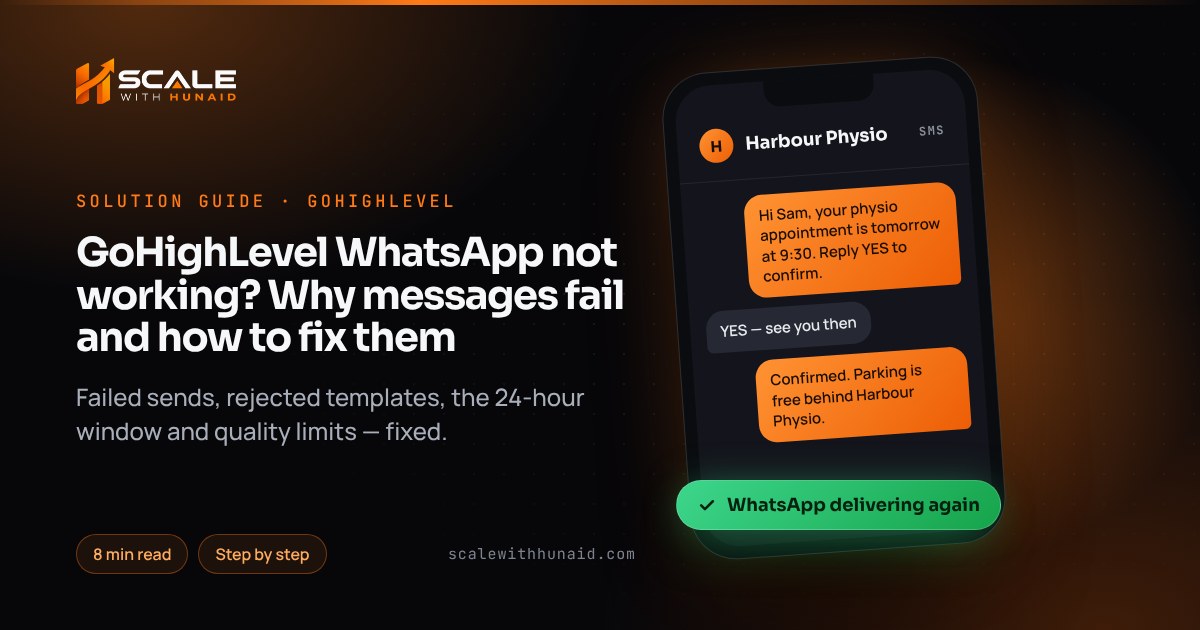
GoHighLevel WhatsApp not working? Why messages fail and how to fix them
GoHighLevel WhatsApp not working? Fix failed messages, rejected templates, the 24-hour window, US marketing blocks and quality limits, step by step.

Key takeaways
- Most GoHighLevel WhatsApp failures come from Meta’s rules, not a HighLevel bug: once 24 hours pass since the contact last messaged you, only an approved template will send.
- Meta does not deliver marketing template messages to WhatsApp users with US phone numbers, so marketing sends to +1 US contacts fail; utility templates are not affected.
- Error 131049 means Meta held back a marketing message under its per-user limits; wait at least 24 hours before resending and do not retry in a loop.
- Templates are rejected mainly for variable formatting (skipped numbers, a variable at the start or end), the wrong category, or policy breaches; once approved they are locked, so you duplicate and resubmit.
- New business portfolios can message 250 unique users in 24 hours; hitting the limit sets the number to Restricted until 24 hours pass, and a Low quality rating can lower the limit.
When GoHighLevel WhatsApp stops working, HighLevel is rarely the thing that is broken. HighLevel sends your message to Meta’s WhatsApp Cloud API, and Meta decides whether it is delivered. Nearly every failure I see traces back to one of Meta’s rules: the 24-hour customer service window has closed, the message is a marketing template going to a US number, Meta held it back under its per-user marketing limits, the template was rejected, or the number has hit its messaging limit.
This guide takes each cause in the order I check them on client accounts, with the error code you will see, the exact fix inside HighLevel, and how to confirm it worked. It is the same process I use when I set up and repair GoHighLevel accounts for businesses that run their follow-up on WhatsApp.
Start with the error on the failed message
Open the contact in Conversations, hover over the red failed icon on the WhatsApp message and read the error. That one line tells you which section of this guide you need. The codes come from Meta’s WhatsApp error code list; HighLevel shows a plain-English version of the same message.
| Code / message in HighLevel | What it means | The fix |
|---|---|---|
| 131047 — “more than 24 hours have passed since the customer last replied” | The 24-hour window is closed | Send an approved template |
| 131049 — “to maintain healthy ecosystem engagement” / “Meta chose not to deliver” | Per-user marketing limit, or a US number | Wait 24 hours; use utility for transactional messages |
| 131026 — “Message undeliverable” | Not a WhatsApp number, old app or terms not accepted | Check the number; ask the contact to update WhatsApp |
| 131050 | The contact opted out of marketing messages | Do not resend marketing |
| 132000 | Template variables sent don’t match the template | Fill every variable in the workflow action |
| Number status “Restricted” | Messaging limit reached | Wait 24 hours; reply to inbound only |
- 24hcustomer service window for free-form replies(Meta)
- 250unique users a day for a new business portfolio(Meta)
- $10a month per WhatsApp-enabled sub-account(HighLevel)
Cause 1: the 24-hour customer service window has closed (131047)
WhatsApp only lets a business send free-form messages within 24 hours of the contact’s last message. After that, Meta returns error 131047 and you must send a template. HighLevel’s own article on this error gives the same fix. This is the cause behind most “my workflow sends WhatsApp, but only sometimes” reports: the message worked while the lead was chatting and failed once they went quiet.
Fix — build the window check into every workflow:
- Open the workflow and, before the WhatsApp step, add the action WhatsApp: Customer Service Window Check. It splits the workflow into Open and Closed branches.
- On the Open branch, add a WhatsApp action with the template set to None – Free form message.
- On the Closed branch, add a WhatsApp action and choose an approved utility or marketing template that restarts the conversation.
- Save and publish. From the Conversations inbox, pick a template from the template picker when you reply to a contact who has been quiet for more than a day.
When the contact replies to your template, a new 24-hour window opens and free-form messages work again.
Cause 2: marketing templates to US numbers (131049)
Meta does not deliver marketing template messages to WhatsApp users with US phone numbers — a +1 dialling code with a US area code. HighLevel announced the pause from 1 April 2025, and as of October 2026 it still applies across all of Meta’s business messaging APIs. Retrying will not help. Utility and authentication templates are still delivered.
Fix:
- Filter your contact list by country code and remove US numbers from any WhatsApp marketing campaign or bulk action.
- For US contacts, send the promotion by SMS or email instead. My guide to SMS error 30007 covers keeping those texts out of carrier filters.
- If the message is genuinely transactional — an appointment reminder, an order update, a booking confirmation — rewrite it as a utility template. HighLevel has a Template Rewriter that converts a marketing template into a utility one. Keep promotional lines out of it, or Meta will recategorise it.
Cause 3: Meta’s per-user marketing limits (131049 outside the US)
Meta caps how many marketing templates each person receives. When a contact has had enough, Meta returns 131049 — “this message was not delivered to maintain healthy ecosystem engagement”. Meta says to wait at least 24 hours before resending, and warns that repeated retries can block delivery to that user for up to 24 hours. HighLevel’s article on “Meta chose not to deliver” also says not to retry straight away, and to space retries out.
Fix:
- Remove any workflow loop that resends a failed WhatsApp message immediately.
- Add a Wait of at least 24 hours before a retry step, and retry once.
- Send fewer marketing templates to each contact — one campaign a week is a safer pattern than daily offers.
- Use utility templates for anything transactional; the per-user marketing limit does not apply to them.
- Add a marketing opt-out button to marketing templates. People who can opt out tend to block you less, which protects your quality rating.
Cause 4: the template was rejected
Meta reviews every template and HighLevel shows the result. HighLevel lists the common rejection reasons as Commerce Policy breaches, asking for sensitive information, abusive wording and duplicating an existing template. Meta’s template review rules add formatting problems: variables out of order, special characters in variables, too many variables for the length of the message, and a variable at the start or end of the body.
Fix:
- Open the WhatsApp templates list in the sub-account (under Settings → WhatsApp) and open the rejected template to read the reason.
- Number variables in order with no gaps:
{{1}},{{2}},{{3}}. HighLevel’s builder now flags malformed braces and a body that starts or ends with a variable before you can save. - Put text before the first variable and after the last one.
Hi {{1}}, your appointment is on {{2}} at {{3}}. Reply YES to confirm.passes;{{1}} your appointment is {{2}}does not. - Add a sample value for every variable so the reviewer sees a real message.
- Pick the category that matches the content. A reminder with a discount code is marketing, not utility.
- Never ask for card numbers, passwords or ID numbers in a template.
- Create templates inside HighLevel, not in Meta Business Manager, so they appear in workflows. If an approved template needs changing, duplicate it, edit the copy and submit it — the original’s body, header and footer are locked.
Rejected
- Avoid: Starts with {{1}}
- Avoid: Skips from {{1}} to {{3}}
- Avoid: No sample values
- Avoid: Discount sent as utility
- Avoid: Asks for card details
Approved
- Do: Text before the first variable
- Do: Variables numbered in order
- Do: Sample for every variable
- Do: Category matches the content
- Do: Links to a secure page instead
Cause 5: the number is Restricted or Flagged
Meta sets a messaging limit per business portfolio, shared by every number in it. New portfolios can start conversations with 250 unique users in 24 hours. When you hit the limit, HighLevel shows the number as Restricted: no outbound templates for 24 hours, although you can still reply to customers who message you. If the quality rating drops to Low, the number becomes Flagged; if quality does not recover within seven days, the limit drops a tier.
After the 100,000 tier comes unlimited. Meta replaced the old 1,000 first step with 2,000.
Source: Meta for Developers, Messaging Limits (October 2026)
Fix:
- Check your tier in WhatsApp Manager → Account tools → Messaging limits.
- To reach 2,000, verify your business in Meta Business Manager, or send 2,000 delivered templates outside service windows to unique users within 30 days with high-quality templates.
- Split large bulk actions over several days so each day stays under the limit.
- If the number is Flagged, pause marketing sends for a week, send only to people who opted in, and keep the opt-out button on every marketing template.
Cause 6: connection and number problems
If nothing sends at all, the number itself may not be connected. WhatsApp is set up per sub-account under Settings → WhatsApp through Meta’s Embedded Signup.
Fix:
- Open Settings → WhatsApp and check the number shows Connected.
- If you get “This phone number is already registered to a WhatsApp account”, the number is still live on the WhatsApp app. Either use a fresh number, delete the app account (which removes its chat history), or use Coexistence.
- For Coexistence, choose Connect a WhatsApp Business App, update the app to the latest version first, and scan the QR code. Only one number per account can use Coexistence, and it is not available for Nigerian or South African numbers.
- If you verify with a LeadConnector number, the code from Meta arrives in Conversations.
- For error 131026, check the contact’s number is in full international format with the country code, and ask them to update WhatsApp.
The fix, step by step
- 1Read the error codeHover the failed message in Conversations.
- 2Add the window checkFree-form if open, template if closed.
- 3Drop US marketing sendsUse SMS, email or a utility template.
- 4Stop instant retriesWait at least 24 hours after 131049.
- 5Fix rejected templatesOrdered variables, samples, right category.
- 6Watch limits and qualitySpread bulk sends; keep the opt-out.
- Read the error on the failed message and match it to the table above.
- Add a Customer Service Window Check before every WhatsApp step in your workflows.
- Remove US numbers from WhatsApp marketing and move transactional messages to utility templates.
- Replace instant retries with a 24-hour wait and a single retry.
- Fix and resubmit rejected templates, or duplicate locked ones.
- Check the number is Connected and under its messaging limit.
- Confirm it worked. Send a template to a test contact on a non-US number who has not messaged you for a day. You should see Sent, then Delivered, then Read in the conversation. Reply from that phone and check that a free-form message now sends.
My guide to workflows that do not trigger covers reading workflow history if the WhatsApp step never runs at all.
What WhatsApp costs in GoHighLevel
As of October 2026, HighLevel charges the agency $10 a month for each WhatsApp-enabled sub-account, plus usage that varies by country and template category. HighLevel’s pricing guide says that from 1 October 2026 service messages are charged per message, with the first 1,000 per phone number each month free. An empty wallet stops usage-based sends, so rule that out when every message fails at once.
Mistakes that break WhatsApp again
- Sending free-form text from a workflow with no window check.
- Treating US contacts like everyone else in a marketing campaign.
- Retry loops after 131049, which make the block last longer.
- Labelling promotions as utility to dodge the limits — Meta recategorises them.
- Blasting a whole list on day one from a new portfolio limited to 250 users.
Keeping WhatsApp reliable in HighLevel
WhatsApp works well inside GoHighLevel once your workflows follow Meta’s rules: a window check before every send, utility templates for transactional messages, marketing only where Meta delivers it, and bulk sends paced to your limit. When I set up a GoHighLevel CRM, those rules are built into the workflows and tested from real numbers before launch.
If your follow-up also runs on SMS and email, email and SMS deliverability keeps every channel landing. If you want an AI assistant answering WhatsApp chats, my guide to Conversation AI not responding covers deploying the bot on that channel.

References
- WhatsApp error codes — Meta for Developers
- Per-user marketing template message limits — Meta for Developers
- Messaging Limits — Meta for Developers
- Template review — Meta for Developers
- WhatsApp: Customer Service Window Check — HighLevel Support Portal
- WhatsApp Error: Message failed to send because more than 24 hours have passed since the customer last replied — HighLevel Support Portal
- WhatsApp Marketing Messages to U.S. Numbers Paused Starting April 1, 2025 — HighLevel Support Portal
- WhatsApp Messages Errors: Meta Chose Not to Deliver and Message Undeliverable — HighLevel Support Portal
- WhatsApp Template Invalid Format Errors: Causes & Fixes — HighLevel Support Portal
- WhatsApp Template Statuses and Best Practice — HighLevel Support Portal
- How to Convert a Marketing Template into a Utility Template Using the Template Rewriter — HighLevel Support Portal
- WhatsApp Quality Rating, Status Changes, and Messaging Limits — HighLevel Support Portal
- Marketing Opt-out Button to Your Message Template — HighLevel Support Portal
- How to Set Up WhatsApp for a Sub-Account in HighLevel — HighLevel Support Portal
- Error: “This phone number is already registered to a WhatsApp account” — HighLevel Support Portal
- WhatsApp Coexistence: Feature for Dual-Platform Messaging — HighLevel Support Portal
- WhatsApp Pricing, Billing & Rebilling Guide for HighLevel — HighLevel Support Portal