
Solution guide · GoHighLevel
GoHighLevel snapshot not working: why assets are missing and how to fix it
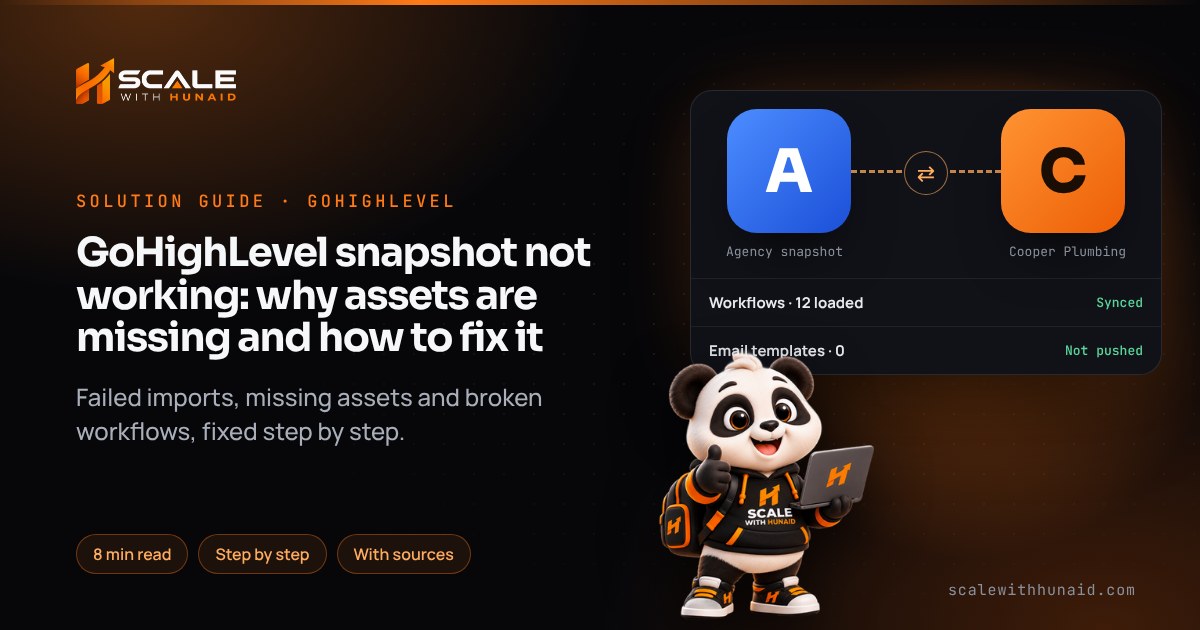
GoHighLevel snapshot not working? Fix failed imports, missing assets, broken workflow emails, duplicates and updates that never reach client accounts.

Key takeaways
- Most GoHighLevel snapshot problems come from five places: a share link that expired or was already used, a snapshot that was imported but never loaded, assets that snapshots never carry, workflow emails pushed without their templates, and updates pushed from a snapshot that was not refreshed.
- Importing only adds a snapshot to your agency library; nothing reaches a client until you load it into a sub-account.
- Snapshots never carry contacts, conversations, appointments, integrations, Stripe connections or Voice AI phone numbers, so every load needs a short reconnection checklist.
- Workflow email actions break when the workflow is pushed without its linked template or before it, so push them together or the template first.
- Choosing Override during a load cannot be undone through the snapshot, and loading the same snapshot twice duplicates assets, so review the conflict list every time.
When a GoHighLevel snapshot is not working, the snapshot itself is rarely broken. Almost every case I fix is one of five things: the share link expired or was already used, the snapshot was imported but never loaded into the sub-account, the “missing” assets are things snapshots never carry, the workflow emails were pushed without their templates, or an update was pushed from a snapshot that was never refreshed.
This guide shows how to tell which one you have, then fixes each cause step by step, with the menu paths HighLevel uses as of November 2026. It is the same process I follow when I build and deploy GoHighLevel snapshots and SaaS mode for agencies.
How GoHighLevel snapshots work
A snapshot is a copy of one sub-account’s setup. HighLevel’s overview lists what it carries: workflows, funnels, calendars, forms, emails, triggers, custom fields, custom values, membership content and more. It is a template, not a backup, and it has three separate stages that people often mix up:
- Import: a share link adds the snapshot to your agency’s library. HighLevel is clear that this stores the snapshot only; nothing reaches a client yet.
- Load: you apply the snapshot to a sub-account, either a new one or an existing one, choosing what to do with each conflict.
- Refresh and push: when the source account changes, you refresh the snapshot to capture the change, then push it to sub-accounts that already have it.
A problem at any stage looks the same to a client: “the snapshot didn’t work”. So the first job is to find the stage.
- 1Check the share linkExpired, used or restricted links fail.
- 2Load it, not just importImport only fills your library.
- 3Reconnect what never copiesNumbers, Stripe, integrations, DNS.
- 4Fix workflow emailsPush templates with their workflows.
- 5Review every conflictSkip what the client has edited.
- 6Refresh before pushingSnapshots never update themselves.
Find the cause in five minutes
Open the sub-account and check its snapshot load history from the sub-account’s Actions menu. It shows which snapshots were loaded, which version and by whom. On the agency side, the Imported Snapshots tab has a View History showing every load, the sub-accounts it went to and the assets deployed. Then match what you see:
| What you see | Likely cause | Go to |
|---|---|---|
| Import fails, “expired” or “invalid link” | Link expired, already used or restricted | Cause 1 |
| Snapshot in your library, nothing in the sub-account | Imported but never loaded | Cause 2 |
| Contacts, numbers, Stripe or integrations missing | Never included in snapshots | Cause 3 |
| A workflow or funnel missing that should be there | Asset unlinked, or snapshot not refreshed | Cause 3 |
| Workflows loaded but emails blank or not sending | Email action template not pushed with workflow | Cause 4 |
| Duplicate workflows, funnels or calendars | Same snapshot loaded twice | Cause 5 |
| Client’s own edits wiped | Override chosen, or a push update | Cause 5 |
| Change in source account never reached clients | Snapshot not refreshed, or external agency | Cause 6 |
Cause 1: the share link expired, was used or is restricted
HighLevel’s import guide separates four failures: an expired link, a one-time link that was already used, a restricted link made for a different agency or sub-account, and a source snapshot that is no longer available. According to HighLevel’s sharing guide, a one-time link works for one successful import only, so the sender needs to make a new link for every recipient. HighLevel’s changelog says the import screen now shows clearer messages for expired or invalid links, so read the exact wording before retrying.
The fix:
- Read the error on the import screen and note which of the four it is.
- If it is expired, used or the source is unavailable, ask the person or agency who shared it for a new share link. Retrying the old one will not work.
- If it is restricted, ask the sender to make the link for your agency (or the right sub-account), not someone else’s.
- If you cannot import at all, check your user has the Share/Import Snapshots permission, which HighLevel’s import guide lists as required.
- After importing, wait for the snapshot to stop showing as greyed out in your list. The changelog says imports appear straight away but stay greyed out while they process.
Cause 2: the snapshot was imported but never loaded
This is the most common one with bought snapshots. The agency imports the link, sees the snapshot in Account Snapshots → Imported Snapshots, and assumes the client account is done.
The fix (existing sub-account):
- In agency view, go to Sub-Accounts, open the account’s three-dot menu and choose Manage Client.
- Click Actions (top right) and choose Load Snapshot. If you cannot see it, HighLevel says to check snapshot access under User → Roles and Permissions.
- In Pick a Snapshot, choose the snapshot and click Proceed.
- Select all assets or just the categories you need, then review each conflict and choose Skip or Override (see Cause 5 before you decide).
- Type confirm and click Proceed. HighLevel sends an email when the load is finished.
The fix (new sub-account): in Account Snapshots, find the snapshot under My Snapshots or Imported Snapshots and use Create new account so the snapshot is applied during setup, as HighLevel’s overview describes.
Cause 3: the assets you’re looking for were never in the snapshot
Some things never travel in a snapshot, by design. Others were left out by whoever built it. Know which is which before you blame the load.
| Never included (reconnect by hand) | Included only if the builder set it up |
|---|---|
| Contacts, conversations, appointments, reputation data (HighLevel) | Assets switched on in Edit Snapshot (linked assets) |
| Stripe connections and integrations | Changes made after the last refresh |
| Phone numbers assigned to Voice AI agents (HighLevel) | Knowledge bases selected when the snapshot was created |
| Lead Gen Forms and private dashboards (HighLevel) | Dashboard widgets, if their custom values and pipelines were included too |
The fix if a “never included” item is missing: run this reconnection checklist on every new account.
- Buy or assign the phone number, then open the account’s Voice AI dashboard and assign numbers to each agent. My Voice AI troubleshooting guide covers what to check next.
- Connect Stripe under Payments → Integrations, then Google or Outlook calendars, Facebook, Google Business Profile and any other integration.
- Set up the client’s own domains and email sending domain. A snapshot cannot copy DNS; see my guides to connecting a domain and keeping emails out of spam.
- Import contacts with a CSV if the client is moving from another CRM.
The fix if a built asset is missing:
- In the source agency, go to Account Snapshots → My Snapshots, open the three-dot menu and choose Edit Snapshot.
- Check the missing asset is switched on. HighLevel says enabled assets are pushed and disabled ones are not. Click Save.
- Open the snapshot’s Version History and the version the client loaded. It shows whether the asset was Removed or Synced in that version.
- Refresh the snapshot, then push or load just that asset to the sub-account.
Cause 4: workflows loaded but the emails don’t work
This catches a lot of agencies. HighLevel’s article on workflow email actions explains that each email step is linked to a template handled in the background. If you push the workflow alone, the email actions aren’t available. If you push the template after the workflow, mapping and sync fail.
The fix:
- Push the workflow and its linked template together, or push the template first.
- If it already failed, HighLevel’s advice is to delete the old workflow and its email actions in the sub-account and push them again from the updated snapshot. Note that bulk deletion of email action templates isn’t supported, so this is one at a time.
- Open each Send Email action, check the content and template, and send a test email before you publish the workflow.
- Check the client’s custom values. Snapshots carry the source account’s custom values, so the business name, phone and booking link may still be the template’s. Update them under Settings → Custom Values.
- Open each workflow and check its triggers point at the client’s forms, calendars and pipelines, then publish. If one still won’t fire, my guide to workflows not triggering walks through the rest.
Cause 5: duplicates, or the client’s edits were overwritten
Two behaviours cause this. First, HighLevel says loading the same snapshot more than once makes items duplicate. Second, choosing Override on a conflict replaces the client’s version, and that cannot be undone through the snapshot load. A push update also overwrites snapshot-made assets with the latest version, although custom values are never edited or deleted.
The fix:
- Use Load Snapshot once, when onboarding. For every later change, use Push Update, not another load.
- On the conflict screen, choose Skip for anything the client has customised, and Override only for assets you know are untouched.
- Delete duplicates by hand. Keep the copy that is published and has recent enrolments; check no trigger or funnel links to the one you delete.
- Tell clients to edit a copy of a snapshot workflow or funnel and point their automations at the copy, which HighLevel recommends so pushes don’t wipe their changes.
Cause 6: updates never reach client accounts
Snapshots don’t update themselves. If you fix a workflow in the source account and push straight away, you push the old version. Updates also only push to sub-accounts inside your own agency.
The fix:
- In Account Snapshots → My Snapshots, refresh the snapshot. Check Version History shows a new version: HighLevel only records one after a successful refresh.
- If some assets failed during the refresh, retry just the failed ones rather than starting again.
- Push the update to the sub-accounts, review conflicts, and confirm in the sub-account’s load history.
- For a client in another agency, send a new share link; they have to import and load it again.
Common mistakes to avoid
Breaks on load
- Avoid: Import but never load
- Avoid: Load the same snapshot twice
- Avoid: Override without reading
- Avoid: Push without refreshing
- Avoid: Workflow pushed alone
Works first time
- Do: Load once, push updates
- Do: Skip client-edited assets
- Do: Refresh, then push
- Do: Templates pushed with workflows
- Do: Reconnection checklist run
- Testing on a live client. Load new snapshots into a clean test sub-account first and run one lead through every workflow.
- Hard-coding client details. Put names, phones and links in custom values so one change fixes every asset.
- No handover notes. List everything the client must connect themselves (Stripe, calendars, domain) in the onboarding email.
Confirm it is fixed
You are done when the sub-account’s load history shows the latest version, every expected workflow, funnel and calendar is present once, custom values show the client’s details, a test lead runs through the main workflow and receives the email and text, and the phone number, Stripe and calendars show as connected.
Get snapshots that deploy cleanly
A snapshot should save you hours on every client, not create a support ticket. If you’d rather start with one that is already tested, my prebuilt GoHighLevel snapshots install in a day. If you build your own, I set up snapshots and SaaS mode so loads and pushes behave, and tidy the GoHighLevel CRM setup underneath.

References
- HighLevel Snapshots Overview: Copy Account Assets Fast — HighLevel Support Portal
- How to Import Snapshots in HighLevel: Complete Guide — HighLevel Support Portal
- How to Share Snapshots in HighLevel — HighLevel Support Portal
- Load a Snapshot Into an Existing Sub-Account — HighLevel Support Portal
- How to Create New Snapshots in HighLevel — HighLevel Support Portal
- Manage Linked Assets in Snapshots — HighLevel Support Portal
- Snapshot Workflow Email Action – Enhanced Flow — HighLevel Support Portal
- Pushing & Loading Snapshot Updates to Client Accounts — HighLevel Support Portal
- Refresh or Update Snapshots in HighLevel — HighLevel Support Portal
- Snapshots Version Management for HighLevel Agencies — HighLevel Support Portal
- Imported Snapshots: Load Modal and History Tracking — HighLevel Support Portal
- View Snapshot Load History in a HighLevel Sub-account — HighLevel Support Portal
- Voice AI Configuration Support for Snapshots — HighLevel Support Portal
- How to load snapshots with Dashboards — HighLevel Support Portal
- How to use Custom Values in HighLevel — HighLevel Support Portal
- Personalised Snapshot Imports & Enhanced UI — HighLevel Changelog