
Solution guide · AI & automation
GoHighLevel Zapier not working: how to find the cause and fix it
GoHighLevel Zapier not working? How to fix expired LeadConnector connections, Zaps that never trigger, held runs and contacts that never arrive.

Key takeaways
- Most GoHighLevel Zapier failures come from four places: an expired or wrong LeadConnector connection, a Zap that is off or picked the wrong trigger, a polling delay that looks like a failure, or data mapped into the wrong fields.
- The LeadConnector app on Zapier now connects with your HighLevel login and a chosen sub-account, not an API key, so Zaps still built on an old V1 API key should be rebuilt on the new connection.
- Zapier holds runs when a connection expires and turns a Zap off when 95% of its runs error, so reconnect first, then replay the held runs from Zap history.
- When the LeadConnector app does not have the trigger you need, a HighLevel workflow with a Webhook action sending to a Zapier Catch Hook is the reliable route.
- Zap history and the HighLevel contact record together tell you which side failed; always check both before changing anything.
When a GoHighLevel Zap stops working, the cause is nearly always one of four things: the LeadConnector connection in Zapier has expired or points at the wrong sub-account, the Zap is off or uses the wrong trigger, a polling delay looks like a failure, or the data is mapped into the wrong fields. Each one shows up clearly in Zap history, and each one has a short fix.
This guide shows how to find which one you have in a few minutes, then fixes each cause step by step, including the move away from old V1 API keys and the webhook route for triggers the Zapier app does not offer. It is the same checklist I use when I build and repair Zapier, Make and n8n automations for HighLevel clients.
How GoHighLevel and Zapier connect today
On Zapier, HighLevel appears as the LeadConnector app. According to HighLevel’s connection guide, you choose LeadConnector in the Zap editor, click Sign in, log in with your HighLevel user and pick the sub-account to connect. No API key is needed. HighLevel announced this OAuth-based sign-in for the LeadConnector app to replace hard-coded API keys, which it says carried a higher risk of leaked credentials.
That matters, because many older Zaps were built on a sub-account API key. HighLevel’s API documentation says the V1 API reached end of support on 31 December 2025: existing connections keep working, but get no support or updates. HighLevel has also stopped creating new V1 keys and marks keys unused for more than 90 days as Expired. As of November 2026, the HighLevel pages I checked give no shutdown date for V1, but a Zap that depends on it has no support if it breaks.
There are three ways data moves between the two tools:
| Route | Direction | How it works | Best for |
|---|---|---|---|
| LeadConnector trigger | HighLevel → Zapier | Zapier watches HighLevel for an event | Simple events the app offers |
| Webhook action + Catch Hook | HighLevel → Zapier | A HighLevel workflow posts data to a Zapier URL | Any event a workflow can trigger on |
| LeadConnector action or Inbound Webhook | Zapier → HighLevel | Zapier creates or updates a contact, or posts to a workflow URL | Getting leads from other apps into HighLevel |
- 1Open Zap historyFind the run and read its status.
- 2Reconnect LeadConnectorFix expired or wrong sub-account links.
- 3Check the triggerZap on, right event, new test record.
- 4Fix the field mappingEmail, phone and custom fields mapped.
- 5Use a webhook if neededWorkflow to Catch Hook for any event.
- 6Replay held runsRecover the leads that were missed.
Find your cause in five minutes
Start in Zapier, not HighLevel. Open the Zap, go to Zap history and look at the runs around the time a lead went missing. The status tells you where to look:
| What you see | Likely cause | Go to |
|---|---|---|
| No run at all | Zap off, wrong trigger, polling delay or an old record | Cause 2 or 3 |
| Run held, connection error | LeadConnector connection expired | Cause 1 |
| Zap turned off by Zapier | Too many errors in a row | Cause 1 |
| Run filtered | A filter step did not match the live data | Cause 4 |
| Run success, but nothing in HighLevel | Wrong sub-account, or fields mapped wrongly | Cause 1 or 4 |
| Event exists in HighLevel but the app has no matching trigger | Trigger not available in the app | Cause 5 |
Then open the contact in HighLevel. If the contact exists but Zapier never ran, the problem is on the trigger side. If Zapier ran successfully but the contact is missing or blank, the problem is the action or the mapping.
Cause 1: the LeadConnector connection expired or points at the wrong sub-account
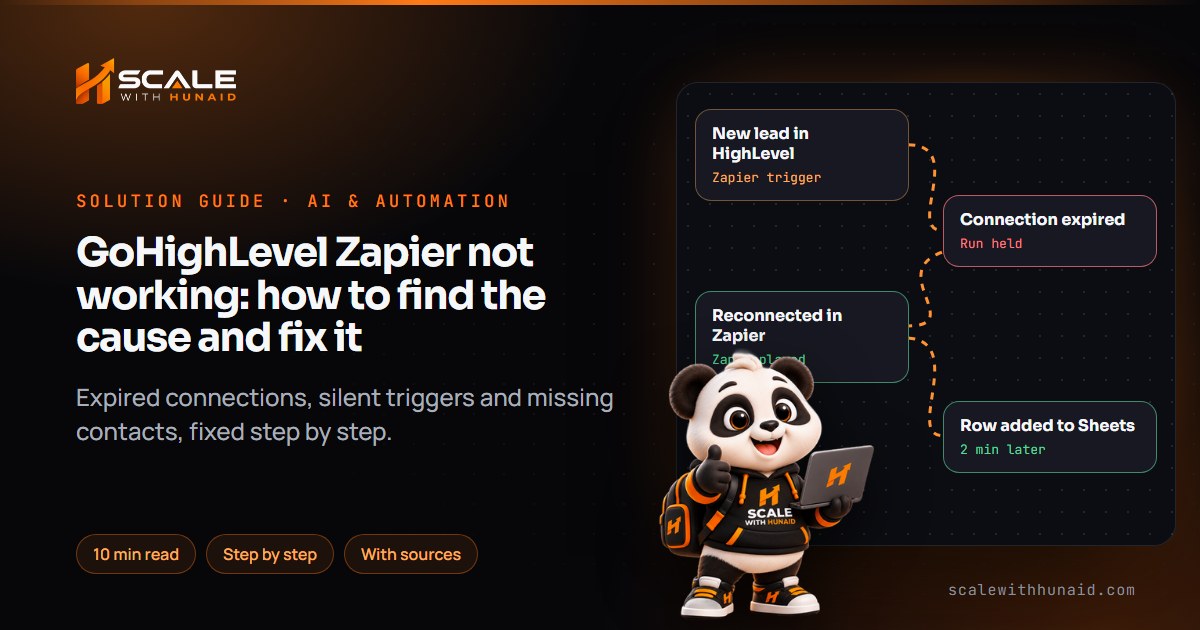
Zapier says app connections often expire after a password change or a new security control. When that happens, runs are held: they wait and will not finish until you reconnect. If the Zap keeps failing, Zapier turns it off automatically when it errors 95% of the time and has run more than 20 times in the past 7 days.
The other version of this problem is quieter: the Zap runs fine, but into a different sub-account than you expect. Each LeadConnector connection is tied to the one sub-account chosen at sign-in, so an agency with several clients can easily pick the wrong one.
The fix:
- In Zapier, open the App Connections page and find LeadConnector. If it is marked expired, click Reconnect and sign in with a HighLevel user who has access to the right sub-account. Only the person who owns the connection can reconnect it.
- If the connection points at the wrong sub-account, add a new LeadConnector connection, pick the correct sub-account when asked, and rename the connection after the client (for example “LeadConnector – Maple Lane Dental”).
- Open each Zap, click the LeadConnector step and check the Account field uses the right connection. Do this for both trigger and action steps.
- If any Zap still uses an old API key connection, switch the step to the new sign-in connection, retest the step and publish.
- Turn the Zap back on if Zapier turned it off.
- Replay the held runs from Zap history (see Cause 6).
Cause 2: the Zap is off or the trigger is wrong
Zapier’s own “Zap isn’t triggering” checklist starts with the simple ones: the Zap is not turned on, the connection is broken, or the trigger event and options do not match the data you are creating. It also says a Zap will not trigger on existing data. It only picks up records created after it was turned on, so testing with an old contact proves nothing.
A frequent mistake I see is picking a trigger that sounds right but fires at a different moment, such as a “contact updated” style event when you really wanted a tag being added. The Zap either fires far too often or never fires for the case you care about.
The fix:
- Check the Zap is On and published, not just saved as a draft.
- Open the trigger step and read the event name and every option under it (sub-account, pipeline, stage). Match them to exactly what happens in HighLevel.
- Create a brand-new test contact or event in HighLevel after the Zap is on.
- For an instant trigger, click Test trigger first and then create the record: Zapier only searches for 3 minutes and the test fails if nothing new appears in that time.
- If the trigger you need does not exist in the LeadConnector app, stop here and use the webhook route in Cause 5.
Cause 3: a polling delay that looks like a failure
Zapier triggers are either instant or polling. Instant triggers receive the data as soon as the app sends it. Polling triggers check for new data on a schedule that depends on your Zapier plan, so a lead can sit for up to 15 minutes before anything happens.
Maximum minutes between checks for new data. Instant triggers are not affected. As of November 2026.
Polling has a second catch. Zapier deduplicates polling data by each record’s unique ID, and if the app returns only a limited number of records per check, a burst of new leads can mean some are skipped.
The fix:
- Check the trigger step: if Zapier labels it instant, delay is not your problem; move on to Cause 4.
- If it is polling, wait a full interval for your plan before deciding it failed, or press Run on the published Zap to check for new data straight away.
- If speed matters, as it does for lead follow-up, replace the polling trigger with a HighLevel workflow and webhook (Cause 5), which sends data the moment the workflow runs.
Cause 4: the Zap runs but the contact is wrong, blank or duplicated
This is the “test works, live doesn’t” problem that keeps coming up in the Zapier Community. The test used neat sample data; the live lead has an empty email, a phone number in a different format, or a value that a filter step rejects.
The fix:
- In Zap history, open a failed or filtered run and compare Data In for each step with the sample you tested on. Look for blank fields.
- In the LeadConnector action, map email and phone every time. HighLevel uses them to find an existing contact; without them it cannot match an existing contact and may create a duplicate.
- Send phone numbers with the country code (for example +1 512 555 0148), which removes guesswork about the number’s country.
- Map custom fields to the HighLevel field itself, not to a field with a similar name. If a field you need is not listed in the action, send it through an Inbound Webhook instead (Cause 5).
- Check any Filter step uses conditions that real leads meet, for example “email exists” rather than an exact value from the test.
- If the contact arrived but in the wrong sub-account, go back to Cause 1.
Cause 5: the trigger you need is not in the Zapier app
The LeadConnector app does not offer a trigger for every HighLevel event. The reliable answer is to let a HighLevel workflow do the triggering, because a workflow can start on almost anything: forms, tags, appointments, pipeline stages, payments.
HighLevel’s Zapier webhook guide describes the setup. Note that Zapier’s Catch Hook (Webhooks by Zapier) needs a paid Zapier plan.
The fix (HighLevel → Zapier):
- In Zapier, create a Zap with Webhooks by Zapier → Catch Hook as the trigger and copy the webhook URL.
- In HighLevel, go to Automation → Workflows, create a workflow and add the trigger you need (for example Form Submitted or Pipeline Stage Changed).
- Add the Webhook action and paste the Zapier URL. The outbound webhook action sends the contact and event data, and you can add your own key/value pairs with merge fields such as
{{contact.source}}. Keep keys as single words without spaces. - Publish the workflow, then run a real test contact through it so Zapier receives sample data.
- Back in Zapier, test the trigger, map the fields into your next step and publish the Zap.
The fix (Zapier → HighLevel, when the LeadConnector action is not enough):
- In HighLevel, create a workflow with the Inbound Webhook trigger and copy its URL. This needs LC Premium Triggers & Actions enabled.
- In Zapier, add a Webhooks by Zapier → POST action with that URL, payload type JSON, and keys in camelCase or snake_case.
- Send one test, then in HighLevel map the incoming fields to a Create/Update Contact action and publish.
If you need to build anything new that talks to HighLevel’s API directly, use V2 with a Private Integration token (sub-account Settings → Private Integrations) rather than a V1 key.
Cause 6: recover the leads you already missed
Fixing the Zap does not bring back the runs that failed while it was broken. Zapier lets you replay held and errored runs, but only within 60 days of the original trigger, and only while the Zap is turned on.
The fix:
- Fix the cause first (usually the connection) and turn the Zap on.
- In Zap history, filter by status (held or errored), select the runs and choose Replay.
- For leads that never triggered at all, export them from HighLevel’s contact list for the affected dates and push them through manually or with a one-off Zap.
- On Professional plans and above, turn on autoreplay: Zapier retries a failed step up to 5 times, with the last attempt about 10 hours 35 minutes after the first error.
- Leave the error ratio setting on its default, “Turn off if errors occur”, so a broken Zap stops rather than sending bad data for days.
Common mistakes to avoid
Breaks quietly
- Avoid: Old V1 API key connection
- Avoid: Personal login on the Zap
- Avoid: Testing with an old contact
- Avoid: Polling trigger for hot leads
- Avoid: Email or phone left unmapped
Runs every time
- Do: LeadConnector sign-in connection
- Do: Dedicated admin user
- Do: Fresh test record each time
- Do: Workflow webhook for speed
- Do: Email and phone always mapped
- Building everything in Zapier. If both ends are inside HighLevel, a native workflow is faster and has fewer parts to break. See my guide to GoHighLevel workflows that do not trigger.
- Ignoring the error emails. Zapier warns before it turns a Zap off on Team and Enterprise plans. Send those emails to an inbox someone reads.
- No end-to-end test after changes. After any change to a form, pipeline or custom field in HighLevel, run one real test lead through the whole chain.
Confirm it is fixed
You are done when a brand-new test lead created in HighLevel (or the source app) shows up as a success run in Zap history, the record appears in the destination with every mapped field filled, and the time between the two matches what you expect for an instant or polling trigger.
Get your automations talking reliably
Zapier is a good tool for HighLevel, as long as the connection, trigger and mapping are set up properly and someone watches Zap history. If your leads come from Facebook, check why Facebook leads are not syncing to GoHighLevel too, and if a form is the starting point, see GoHighLevel form not working. For bigger flows I often move clients to n8n; my n8n webhook guide covers that side.
If you would rather hand it over, I build and repair automation between HighLevel and your other tools, and set up the GoHighLevel CRM behind it so every lead lands in the right place.

References
- How to Connect a HighLevel Sub-Account to Zapier — HighLevel Support Portal
- OAuth-Based Authentication for LeadConnector App on Zapier — HighLevel Changelog
- HighLevel API Documentation — HighLevel Support Portal
- Security Update: Cleanup of inactive API Keys & transition to PIT — HighLevel Changelog
- Private Integrations: Everything you need to know — HighLevel Support Portal
- How to Use Webhooks in HighLevel (Zapier) — HighLevel Support Portal
- Workflow Action - Webhook (Outbound) — HighLevel Support Portal
- Workflow Trigger - Inbound Webhook — HighLevel Support Portal
- How to enable and rebill Premium Features for Workflows — HighLevel Support Portal
- Rate Limits — HighLevel Developer Portal
- How Zap triggers work — Zapier Help Center
- Zap isn’t triggering — Zapier Help Center
- Zap trigger test fails — Zapier Help Center
- Zap is not running — Zapier Help Center
- Manage your app connections — Zapier Help Center
- What is replay? — Zapier Help Center
- Decide how your Zap handles errors with advanced settings — Zapier Help Center
- How Zapier handles duplicate data in Zap workflows — Zapier Help Center
- Zapier not creating contacts in GHL despite successful test runs — Zapier Community